Mailchimp Plans: Free vs Paid and Qualifying Tiers
Mailchimp cost guide: researched plan structure, free/trial flags, who each tier suits, cost scenarios, and value tradeoffs — no invented prices.
Quick answer
Mailchimp pricing is plan-gated across 4 researched tiers. Free entry: Free. 14-day trial documented. Compare seat/capacity gates and unlocks — not list-price folklore.
- Free plan(s): Free
- 14-day trial documented
- Entry paid tier researched: Essentials
Mailchimp plan takeaways
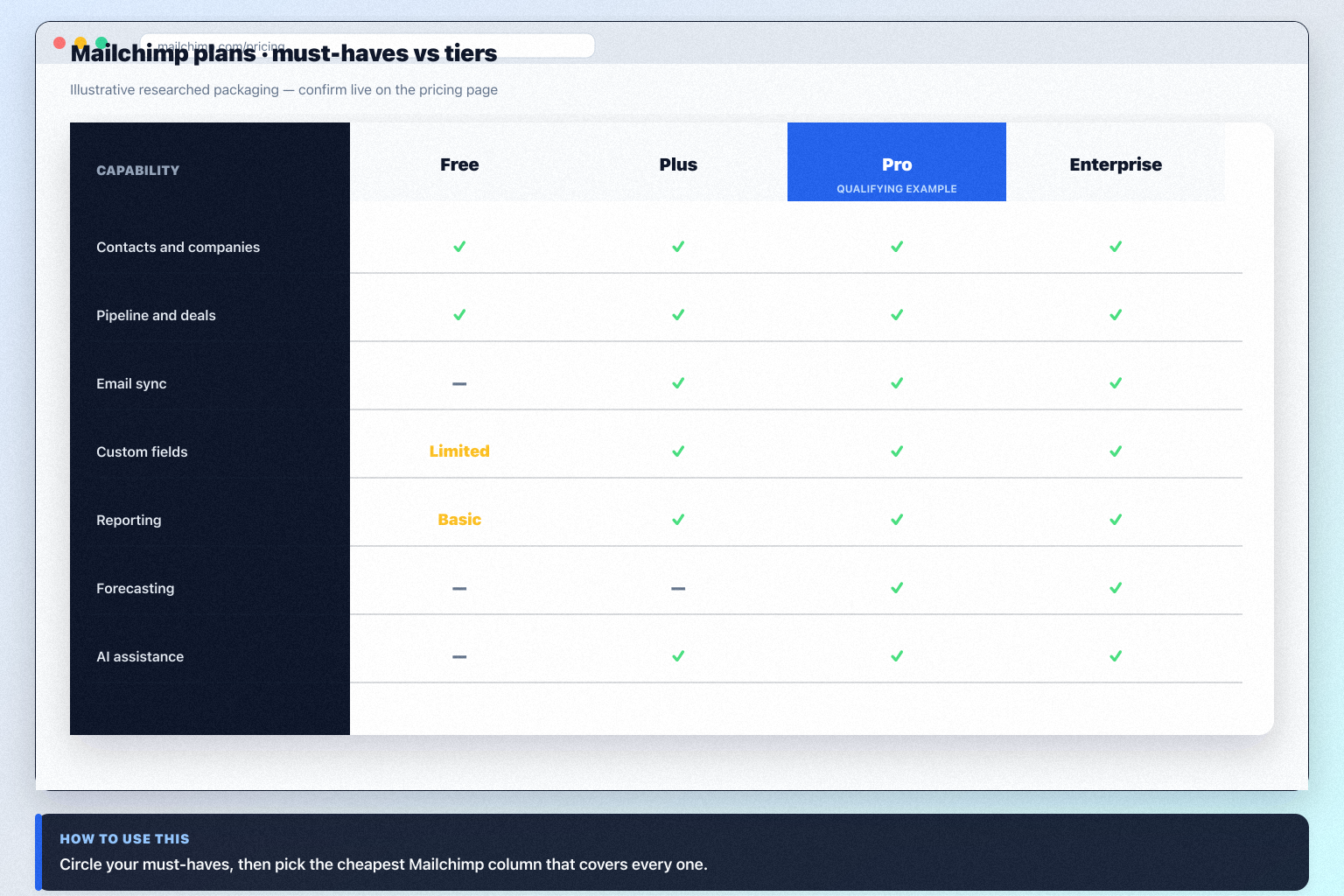
- Starting tier ≠ buying tier — Plan-gated in research: workflow automation (Essentials, Standard, Premium); sales automation (Essentials, Standard, Premium); AI assistance (Standard, Premium).
- What each Mailchimp plan is for — Free, Essentials, Standard, and Premium — the vendor highlights Standard, which is a marketing choice, not your requirement.
- Free vs paid is a capability decision — Free or entry options in our snapshot: Free.
- Capacity limits bite before features do — Our snapshot does not publish Mailchimp seat or record caps — confirm them before you commit a team size.
- Trial before term — Our pricing snapshot records a 14-day trial on Essentials, Standard, and Premium — confirm current terms on the Mailchimp pricing page before you build a schedule around it.
- Numbers live on pricing tools — Use /pricing/mailchimp/ and the Cost Calculator for amounts. This guide deliberately carries no prices, so nothing here goes stale or gets quoted wrongly.
Mailchimp plan anatomy
Mailchimp checklist
Bring these questions to every demo
Ask vendors to show the workflow live, not just describe it.
- 1List day-one must-havesOutcome language, not feature tours.
- 2Map each must to a researched planLowest tier that clears every gate.
- 3Confirm seats and capacity notesLimits are part of the plan decision.
- 4Estimate with Cost CalculatorThen confirm on the pricing page.
Frequently asked questions
What Mailchimp plans exist?
Our researched snapshot lists Free, Essentials, Standard, Premium. Standard is highlighted by the vendor — treat that as marketing, not as your requirement. Re-check /pricing/mailchimp/ for current packaging.
Is there a free Mailchimp plan?
Snapshot free or entry plan names: Free. Confirm limits and gates before you build on it.
Which Mailchimp plan should a small team choose?
Run the algorithm: lowest plan per must-have, take the highest, check capacity, then count seats. Plan-gated in research: workflow automation (Essentials, Standard, Premium); sales automation (Essentials, Standard, Premium); AI assistance (Standard, Premium).
What is plan-gated in Mailchimp?
Plan-gated in research: workflow automation (Essentials, Standard, Premium); sales automation (Essentials, Standard, Premium); AI assistance (Standard, Premium).
How do I estimate cost safely?
Must-haves → qualifying plan name → Cost Calculator seats → TCO categories for admin, migration, and training. Do not invent implementation fees or ROI percentages.
Does Mailchimp offer a free trial?
Our pricing snapshot records a 14-day trial on Essentials, Standard, and Premium — confirm current terms on the Mailchimp pricing page before you build a schedule around it.
Is annual billing worth it?
Annual versus monthly is a term and cash-flow choice, not a capability one. While you are still proving adoption, the ability to fail cheaply for one quarter is often worth more than the annual discount.
What should I do next?
Open /pricing/mailchimp/, run the Cost Calculator on your qualifying plan, and read the Mailchimp worth-it guide before signature.
Mailchimp plan matrix and who each tier suits
Structure and trial/free flags come from SoftwareGlimpse pricing research. Dollar amounts appear only when verified — never invent list prices.
- Seats61%
- Add-ons18%
- Implementation12%
- Training5%
- Other4%
Free
Free plan · Unlocks: contact management, lead management, pipeline management · Suits: explore before committing seats
Essentials
14-day trial · Unlocks: workflow automation, sales automation · Suits: teams whose must-have gates appear on this tier
Standard
14-day trial · Unlocks: AI assistance · Suits: teams whose must-have gates appear on this tier
Premium
Trial available · Suits: teams whose must-have gates appear on this tier
1. Mailchimp cost scenarios to pressure-test
Lean team / free-or-trial first
Stay on Free until a gated capability (workflow automation (Essentials, Standard, Premium)) becomes mandatory.
Growing team with gated workflows
Map must-have workflows (contact management, lead management, pipeline management) to plan unlocks before expanding seats.
Hidden / extra cost watch
Budget risk: Marketing-led CRM — not a full sales pipeline platform. Also check add-ons, overages, and admin time outside the sticker plan.
Price Mailchimp against how you actually buy seats and unlocks — not against a competitor's homepage headline.
Mailchimp value rule
Mailchimp cost mistakes to avoid
Cost trap 1
Marketing-led CRM — not a full sales pipeline platform
Cost trap 2
Paid pricing is contact-based and changes — verify live
Cost trap 3
Deal/pipeline CRM depth limited vs sales CRMs
Cost trap 4
Marketing-led CRM — not a full sales pipeline platform
Cost trap 5
Paid pricing is contact-based and changes — verify live
Cheaper or clearer alternatives to pressure-test
Compare total cost of ownership vs Mailchimp on identical constraints.
- View CRM profile
 HubSpot
AI-powered customer platform with free forever CRM, plus paid Smart CRM seats and Sales/Marketing/Service hubs for growing teams.
- View CRM profile
 ActiveCampaign
Email marketing automation ESP with multi-step journeys; CRM pipelines strongest on Plus+; contact-based pricing.
- View CRM profile
 Pipedrive
Pipeline-first sales CRM for visual deal management, activity-based selling, and growing sales teams.
- View CRM profile
 Keap
KeapCRM catalogue profile for use in your evaluation shortlist.
Catalogue peers only — not commission-ranked.
Mailchimp pricing checklist
0/3 dimensions noted — saved in this browser only.
Plan gates you must unlock
Trial / free proof
TCO extras
Was this article helpful?
Have more questions? Contact our support team.
Part of CRM hub · Mailchimp review
Related guides
Supporting reading in this topic — not a generic related-posts dump.
- How to Choose the Right CRM for Your BusinessA practical decision framework for picking CRM software: needs, features, size fit, integrations, true cost, adoption, and growth — without vendor hype.
- CRM Pricing Guide: How Plans, Seats, and Add-Ons Really WorkLearn CRM pricing models — per-seat tiers, feature gates, add-ons, and annual vs monthly — with bands and qualifiers, then estimate with the Cost Calculator.
- CRM ROI Guide: Justify Value Without Fake PercentagesFrame CRM return as observable operational gains tied to 90-day outcomes — time saved, fewer dropped leads, cleaner forecasts — without inventing ROI percentages.
- CRM Total Cost Guide: See Beyond Per-Seat SubscriptionMap CRM total cost categories — subscription, admin time, migration, training, add-ons, and switching risk — without inventing dollar totals.
- Is Mailchimp Worth It? Fit Scenarios Before You BuyDecide if Mailchimp is worth it for your team — fit scenarios, tradeoffs, and when to keep looking — without invented ROI percentages.
Related products
Related comparisons
Related resources
SoftwareGlimpse Updates
Want clearer software shortlists? Get buying guides and comparisons by email.
Newsletter coming soon.