Lusha Migration: Move Lists Without Losing Trust
Lusha migration guide: inventory → rehearse → freeze → validate integrations — grounded in researched limitations and catalogue peers.
Quick answer
Migrate to Lusha by inventorying legacy sales-intelligence fields, mapping them to Lusha objects, rehearsing a freeze window, and validating Salesforce, HubSpot, Pipedrive before reopening writes.
- Inventory → map → rehearse → cut over → reopen
- Highest risk: Not a full CRM pipeline/deal system — buyers still need a CRM of record for pipeline hygiene.
- Success signal: prospecting works for the pilot cohort
Lusha migration takeaways
- Lists are the product — B2B data intelligence platform for verified contact/company data, enrichment, signals, and Engage outreach sequences. A migration that moves rows but breaks suppressions or owners will burn credits and trust.
- Pilot before bulk — One seller’s book or one ICP segment first — fix mapping before volume.
- CRM stays the system of record — Research names Salesforce, HubSpot, Pipedrive, Bullhorn, and Gmail on the Lusha side — confirm CRM sync and the connectors your daily loop depends on.
- Watch packaging during cutover — Researched plans: Free, Starter, Pro, Premium, Scale. Never invent list prices here — confirm seats, credits, and quote terms on /pricing/lusha/.
Lusha migration map
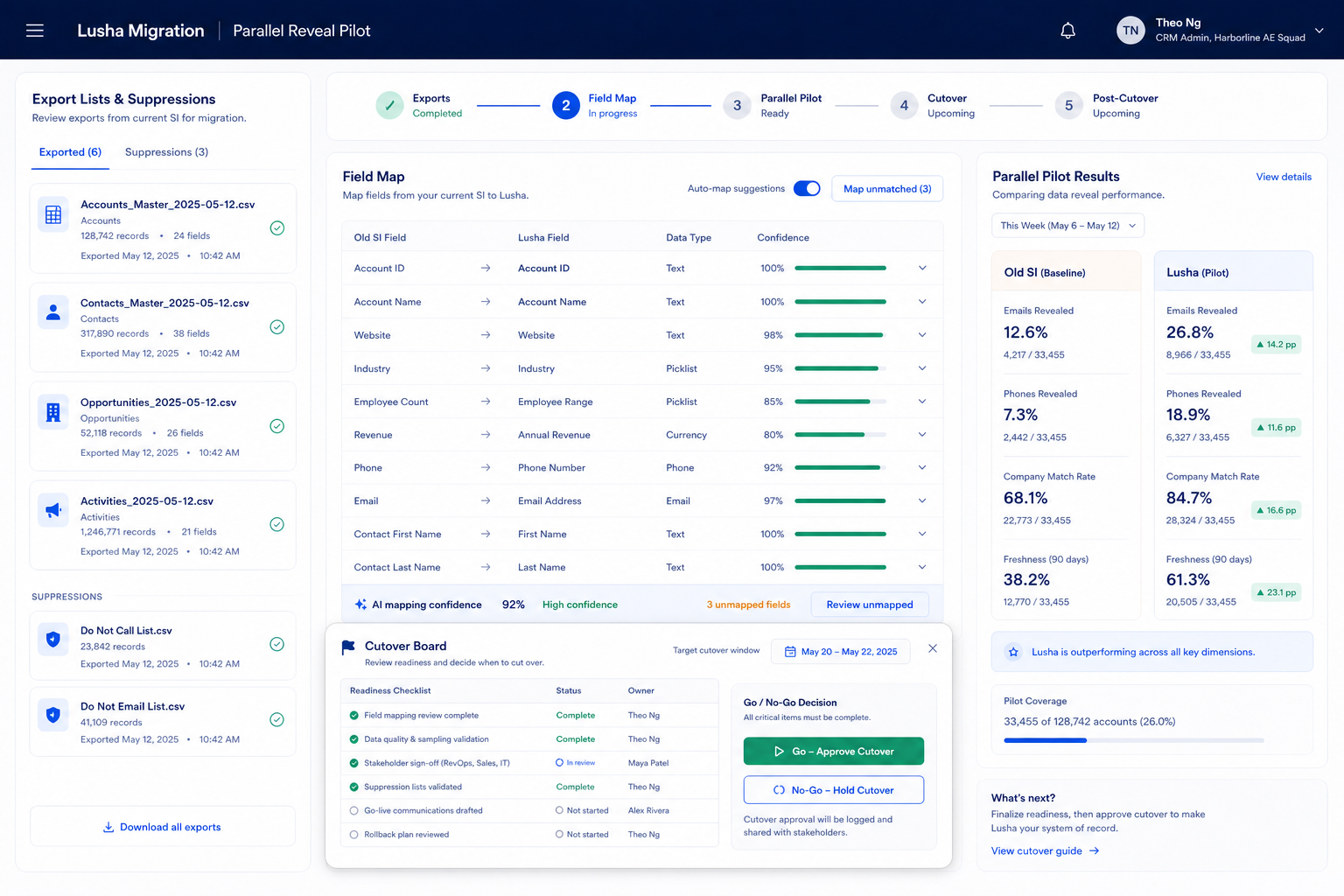
Lusha checklist
Bring these questions to every demo
Ask vendors to show the workflow live, not just describe it.
- 1Inventory source objectsLists, sequences, dialer books, suppressions, owners.
- 2Sign off the field mapTitles, emails, phones, owners, do-not-contact.
- 3Run a pilot importOne segment; fix mapping before bulk.
- 4Dual-run one weekLusha is write-path; old tool is read-only.
- 5Validate with the podSpot-check contacts and CRM sync before cutover.
Frequently asked questions
Should we migrate every historical sequence?
Usually no. Migrate active sequences and suppressions first. Archive cold history unless a compliance need says otherwise.
What breaks most often?
Owner remaps, phone/email field meanings, and CRM sync direction. Pilot those three before bulk.
How do credits factor into migration?
Bulk enrichment during migration can burn a month of credits in a day. Cap enrichment on the pilot, then confirm pack limits on the pricing page.
1. Lusha migration cutover playbook
Field inventory
Export legacy fields that power prospecting, data enrichment, contact management and mark must-map vs archive.
Rehearsal load
Run a non-prod load into Lusha; measure match rates before the freeze.
Production freeze
Freeze legacy writes; cut over; validate Salesforce; then reopen.
Migrations fail from optimistic timelines — not from missing motivation.
Migrate to Lusha?
- 1Migrate when SDR/BDR teams needing verified emails/dials and enrichment outweigh migration cost
- 2Delay if this limitation hits cutover: Not a full CRM pipeline/deal system — buyers still need a CRM of record for pipeline hygiene.
- 3If Lusha mapping is poor, compare destination fit with Apollo.io before moving data twice
Lusha migration mistakes
No freeze window
Dual-writing without a freeze creates irrevocable duplicates.
Integrations last
Wire Salesforce in rehearsal — not on Monday morning after cutover.
Data risk 1
Not a full CRM pipeline/deal system — buyers still need a CRM of record for pipeline hygiene.
Data risk 2
Credit-based consumption for reveals/signals/API; unused annual credits do not roll over.
Data risk 3
API access and some connectors are plan-gated (Pro+ / Scale nuances documented).
Lusha migration checklist
0/3 dimensions noted — saved in this browser only.
Mapping
Rehearsal
Cutover
Was this article helpful?
Have more questions? Contact our support team.
Part of Lusha review · Sales Intelligence hub
Related guides
Supporting reading in this topic — not a generic related-posts dump.
- Lusha Implementation: 30/60/90 Outbound Rollout That SticksPlan a practical Lusha rollout — owners, credits/seats, list quality, sequences or dialer, and CRM sync — so outbound becomes a repeatable motion.
- Lusha Setup: Day-Zero Path to a Working Outbound LoopSet up Lusha for day-zero outbound — seats/credits, one ICP list, sequences or dialer, and CRM sync — before optional enrichment packs.
- Sales Intelligence Migration Guide: Switch VendorsSwitch sales intelligence vendors with export rights, leftover credit planning, CRM field cleanup, parallel run, freeze cutover, and hygiene — without dual write-back fights.
- Sales Intelligence Requirements Guide: Must-Haves, Compliance & CRM Write RulesWrite demo-ready sales intelligence requirements from the primary job, must vs nice features, compliance posture, and CRM write rules — without feature-wishlist shopping.
Related products
Related comparisons
SoftwareGlimpse Updates
Want clearer software shortlists? Get buying guides and comparisons by email.
Newsletter coming soon.