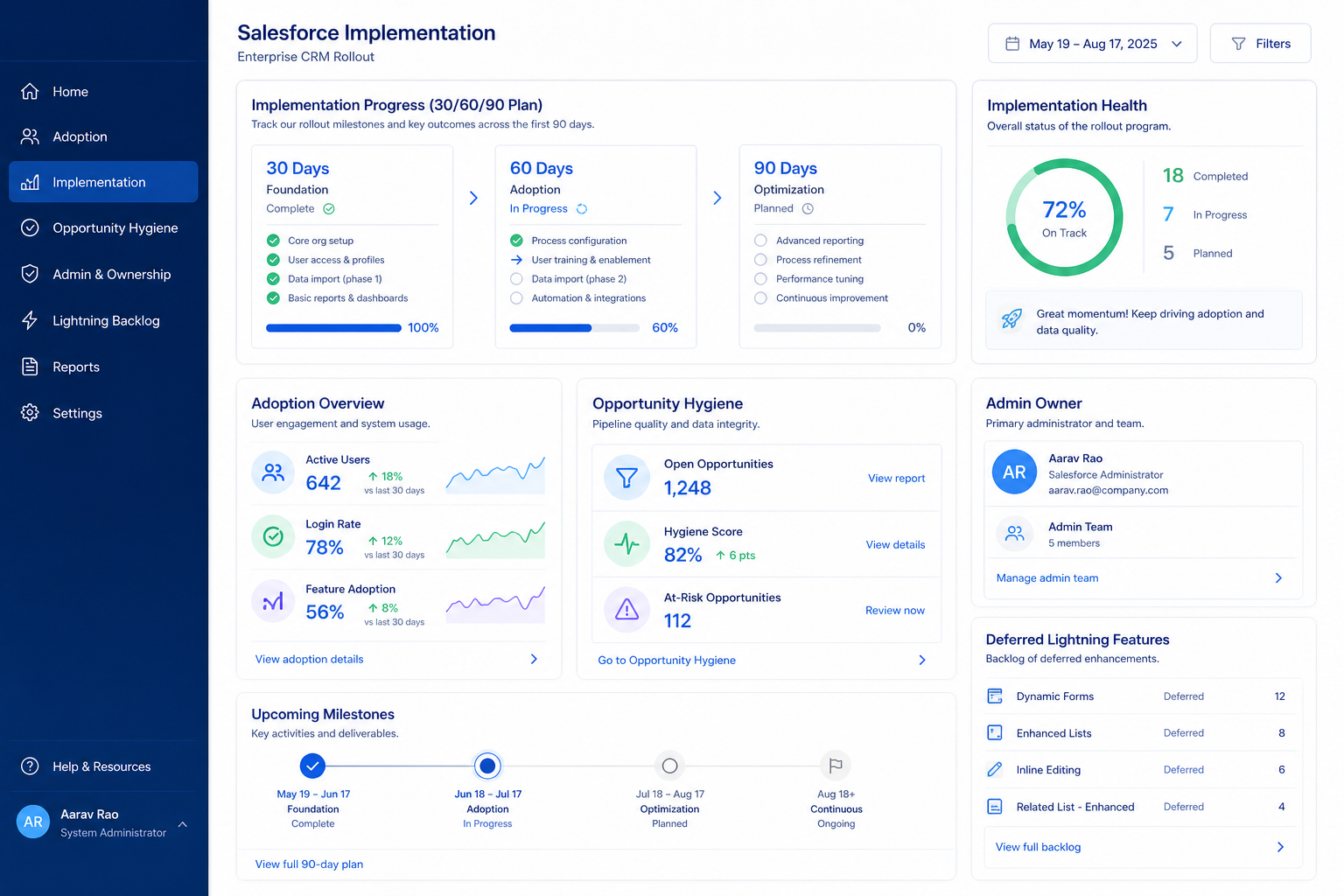
Roll out Salesforce in three phases: days 1–30 get selling work happening in the CRM, days 31–60 make Friday reviews run from Salesforce, and days 61–90 add only what still isn’t working. Confirm custom fields (Pro+) and email sequences (Unlimited+) are on the plan you will actually buy. If sellers still need an admin for basic deal updates by week two, pause new features and fix that first.
Freeze 3 outcomes
Name an admin
Day 30: live pipeline
Day 60: light automation
Day 90: expand carefully
Adoption before features
Salesforce rollout media
Official setup walkthroughs and product surfaces that matter while you roll out Salesforce — not a full product gallery.
Official Salesforce setup walkthrough
Vendor tutorial for onboarding and configuration. It is not a SoftwareGlimpse rollout plan — use this guide for judgment.
This video is hosted on YouTube
This content is hosted by YouTube. The player loads only after you allow marketing cookies.
Official vendor tutorial
How to Set Up Contracted Pricing with Salesforce CPQ
What this shows
✓Salesforce CPQ contracted pricing setup
✓pricing configuration themes as presented by Salesforce
Product screenshots
Verified captures from Salesforce's product interface.
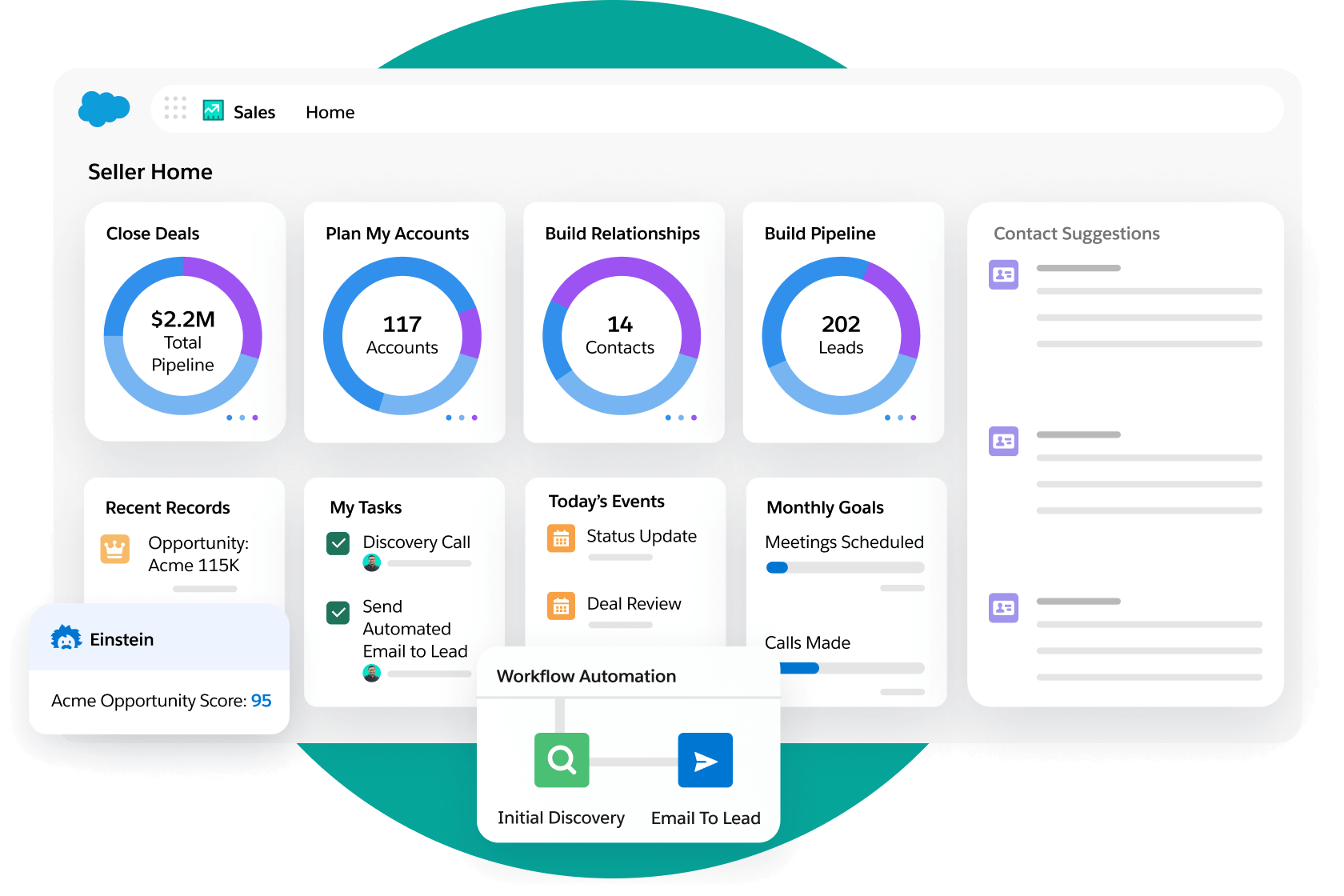
Sales Cloud product view from the official Sales Cloud marketing site.
Implementation is habit work — Enterprise Sales Cloud CRM with Starter Suite through Unlimited editions, deep customization, reporting, automation, and Agentforce AI. None of that helps until the weekly loop is boring.
Sequence features to plan gates — Plan-gated in research: custom fields (Pro Suite, Enterprise, Unlimited); email sequences (Unlimited); forecasting (Pro Suite, Enterprise, Unlimited); prospecting (Starter Suite, Pro Suite, Enterprise, Unlimited).
Enable in this order — Days 1–30: contact management, lead management, pipeline management, and deal management. Days 31–60: reporting and workflow automation. Days 61–90: forecasting, email sequences, and data enrichment.
Measure adoption, not configuration — Count deals with a next step, stage moves per seller per week, and activities logged in Salesforce — not modules enabled.
Know what you inherited — Research watch-outs to plan around: Steep learning curve and high administration/implementation overhead versus SMB CRMs; List pricing escalates quickly beyond Starter (list price annual per user/mo); Important capabilities and support depth often require higher editions or paid add-ons.
AI is a day-61 decision — Research lists AI assistant, AI email drafting, AI summaries, and AI forecasting for Salesforce. Research places AI assistance on Starter Suite, Pro Suite, Enterprise, and Unlimited.
Gate Salesforce rollout so configuration never outruns adoption.
Salesforce: must-have vs nice-to-have
Must-have
✓contact management and lead management
✓reporting
Nice-to-have
•workflow automation
•forecasting
•AI assistance
Salesforce checklist
Bring these questions to every demo
Ask vendors to show the workflow live, not just describe it.
1Freeze three 90-day outcomesBusiness language, not module names.
2Assign RACI for admin + sales leadResponsible and Accountable names in writing.
3Prove the day-30 core loopLive deals, training, Friday review inside the CRM.
4Run four weeks of CRM-native reviewsTwo views + at most one automation.
5Expand only unmet outcomesConfirm plan gates before new capabilities.
6Run the adoption scorecardGreen / amber / red before calling it done.
1. Week 0: freeze three outcomes and assign RACI
Outcomes and owners come before configuration sprawl.
Lock three 90-day outcomes and name Responsible / Accountable before anyone configures Salesforce.
Write exactly three 90-day outcomes in business language.
Assign RACI — Responsible: Salesforce admin owner; Accountable: sales lead; Consulted: two sellers; Informed: finance and delivery.
Write the “not now” list for anything not tied to the three outcomes.
Book the day-30 and day-60 reviews in the calendar now.
Worked example: a 12-person B2B advisory team freezes three outcomes for Salesforce, gives ops two hours a week as Responsible, and defers forecasting and data enrichment to day 61.
2. Days 1–30: make one loop real in Salesforce
Days 1–30 in Salesforce: setup done → live deals → train the loop → Friday in CRM.
In scope
contact management, lead management, and pipeline management and one pipeline.
Out of scope
workflow automation, forecasting, and email sequences — later phases.
Exit criteria
Every open deal has an owner, a stage, and a dated next step.
Finish the setup guide's six steps if they are not already done — pipeline, users, required fields, email sync, non-admin loop proof.
Turn on only what the loop needs. Research supports contact management, lead management, pipeline management, deal management, and custom pipelines on your researched entry tier (Starter Suite).
Move real, current deals in — not a demo dataset. Sellers do not trust fake pipelines.
Train on the loop, not the product: one 45-minute session where every seller creates a deal, logs an activity, and sets a next step in Salesforce on their own screen.
Hold one Friday pipeline review inside Salesforce. If anyone reads from a spreadsheet, that is your day-30 defect.
Worked example: a 12-person B2B advisory team imports 40 live deals into Salesforce, runs one training session on their own pipeline, and bans the shadow spreadsheet from the Friday call in week three.
3. Days 31–60: build the weekly rhythm and light automation
Days 31–60: two Salesforce views and at most one automation.
Healthy signal
Deals move with notes; the forecast conversation uses CRM numbers.
Warning signal
Empty next steps, or contact lists maintained outside Salesforce.
Hard stop
No admin owner after 30 days — fix staffing before features.
Build the management rhythm in Salesforce before you automate.
Build two views: open pipeline by stage with next steps, and deals with no activity in 14 days. Reporting is researched across every Salesforce plan we snapshot.
Run every pipeline review from Salesforce for four consecutive weeks.
Add automation only where a human forgets something predictable. Workflow automation is researched across every Salesforce plan we snapshot.
Fix data quality with rules, not nagging.
In Salesforce, open the reports, dashboards, or automation area — confirm the current control labels in the product, docs, or trial.
Worked example: a 12-person B2B advisory team adds two Salesforce views and one automation that creates a follow-up task when a deal enters proposal — then stops, because hygiene is still at 70%.
4. Days 61–90: expand only what evidence justifies
Expand Salesforce only when an outcome is unmet — not because a feature tour looks shiny.
Expand
An outcome is unmet and the missing capability is the blocker.
Hold
Outcome is met — resist the feature tour.
Escalate to plans
The needed capability is gated. Plan-gated in research: custom fields (Pro Suite, Enterprise, Unlimited); email sequences (Unlimited); forecasting (Pro Suite, Enterprise, Unlimited); prospecting (Starter Suite, Pro Suite, Enterprise, Unlimited).
Re-read the three outcomes. Expand only where an outcome is still missing.
Then, in this order: second pipeline or extra objects, forecasting, sequences, enrichment, remaining integrations. Forecasting is researched on Pro Suite, Enterprise, and Unlimited, email sequences is researched on Unlimited, and data enrichment is researched on Starter Suite, Pro Suite, and Enterprise.
Decide on AI deliberately. Research lists AI assistant, AI email drafting, AI summaries, and AI forecasting for Salesforce. Research places AI assistance on Starter Suite, Pro Suite, Enterprise, and Unlimited. Turn on one capability, measure whether reps keep using it after two weeks, then decide on the rest.
Connect the remaining integrations from your requirements sheet. Research names Gmail, Outlook, and Slack on the Salesforce side — confirm the ones your daily loop actually depends on.
Write down what you chose not to do and why. That list is your renewal-time evidence.
Worked example: a 12-person B2B advisory team adds a second Salesforce pipeline for renewals, enables one AI capability for meeting summaries, and leaves enrichment off because nobody could name the decision it would change.
5. Run the adoption review before anyone says “done”
Green / amber / red adoption gates for Salesforce before you call rollout done.
Score five adoption metrics at day 30, 60, and 90 before you add more Salesforce features.
Percentage of open deals with a dated next step.
Stage moves per seller per week.
Activities logged per seller per week.
Number of shadow spreadsheets still in use.
Admin hours actually spent versus the two hours committed.
If three of five are weak, do not add Salesforce features — simplify stages, retrain, or fix ownership.
Worked example: at day 30, two of a 12-person B2B advisory team's sellers still rebuilt Friday in a spreadsheet. The team paused automation, cut two Salesforce stages, retrained in 30 minutes, and hit 90% next-step coverage by day 45.
Salesforce implementation mistakes
Configuring everything in week one
Unused modules create noise and maintenance. Ship contact management, lead management, pipeline management, and deal management first in Salesforce.
No named admin owner
Without Responsible and Accountable names, fields and hygiene rot quietly.
Training managers instead of sellers
A manager demo is not a non-admin walkthrough on a seller's own screen.
Automating a broken process
Workflow automation in Salesforce multiplies whatever process you already have — including the mess.
Enabling gated features you did not buy
Plan-gated in research: custom fields (Pro Suite, Enterprise, Unlimited); email sequences (Unlimited); forecasting (Pro Suite, Enterprise, Unlimited); prospecting (Starter Suite, Pro Suite, Enterprise, Unlimited). Confirm the plan before you put a capability in the rollout plan.
Ignoring a documented tradeoff
Research flags: List pricing escalates quickly beyond Starter (list price annual per user/mo). Decide how you will live with it before day 60.
Frequently asked questions
How long does Salesforce implementation take?
Small teams reach a usable core loop in weeks when outcomes are frozen and an admin is named; the 30/60/90 frame exists for habits, not clicking. Decision rule: do not call it done until non-admins run the loop unaided and a new hire can follow the one-page note.
What should we enable first in Salesforce?
Start with contact management, lead management, pipeline management, and deal management on your entry tier (Starter Suite), one pipeline, and required fields. Everything else waits for adoption evidence.
When should we turn on automation?
Days 31–60, after four clean weekly reviews. Workflow automation is researched across every Salesforce plan we snapshot. Automate only predictable human forgetfulness — task creation, owner assignment.
When should we enable AI in Salesforce?
Research lists AI assistant, AI email drafting, AI summaries, and AI forecasting for Salesforce. Research places AI assistance on Starter Suite, Pro Suite, Enterprise, and Unlimited. Enable it in the days 61–90 phase, one capability at a time, and keep it only if reps still use it two weeks later.
What adoption metrics actually matter?
Next-step coverage on open deals, stage moves per seller per week, activities logged per seller, surviving shadow spreadsheets, and real admin hours. Modules enabled is a vanity metric.
Do we need consultants?
Many SMB Salesforce rollouts succeed with an internal admin and a one-page plan. Bring help when integrations, complex permissions, or a large migration exceed that capacity — and scope it in writing against your three outcomes.
What if adoption stalls at day 60?
Stop adding features. Cut stages, re-train on the loop, and check whether the admin owner actually has time. If the core loop still fails, re-open the fit question in the Salesforce worth-it guide and compare HubSpot and Dynamics 365.
What should I do next?
Use the Salesforce setup guide for day-zero configuration, the migration guide if history is still moving, and the plans guide if a needed capability turns out to be gated.