Capsule Migration: Move Data Without Losing the Thread
Capsule migration guide: inventory → rehearse → freeze → validate integrations — grounded in researched limitations and catalogue peers.
Quick answer
Migrate to Capsule by inventorying legacy crm fields, mapping them to Capsule objects, rehearsing a freeze window, and validating Gmail, Outlook, QuickBooks before reopening writes.
- Inventory → map → rehearse → cut over → reopen
- Highest risk: Contact, pipeline, and custom-field limits scale strictly by plan tier.
- Success signal: contact management works for the pilot cohort
Capsule migration takeaways
- Map to what this product supports — Capsule research supports contact management, lead management, pipeline management, and deal management — your object model has to land inside that, not inside your old CRM's shape.
- Pilot beats big-bang — One successful Capsule import of a single owner's deals teaches more than a weekend bulk load.
- Stage meaning is the real migration — Columns copy easily; “what qualified means” does not. Agree stage definitions before mapping.
- Custom structure has limits — Custom fields is researched across every Capsule plan we snapshot. Custom pipelines are researched on Growth, Advanced, and Ultimate — check your plan before promising a second motion.
- Keep an exit copy — Retain source exports until Capsule passes seller spot-checks — and ask the export question before you sign, not at renewal.
- Verify tooling, do not assume it — Import formats, record limits, and API behaviour belong in Capsule documentation. Our pricing snapshot records a 14-day trial on Starter, Growth, and Advanced — confirm current terms on the Capsule pricing page before you build a schedule around it.
Capsule migration map
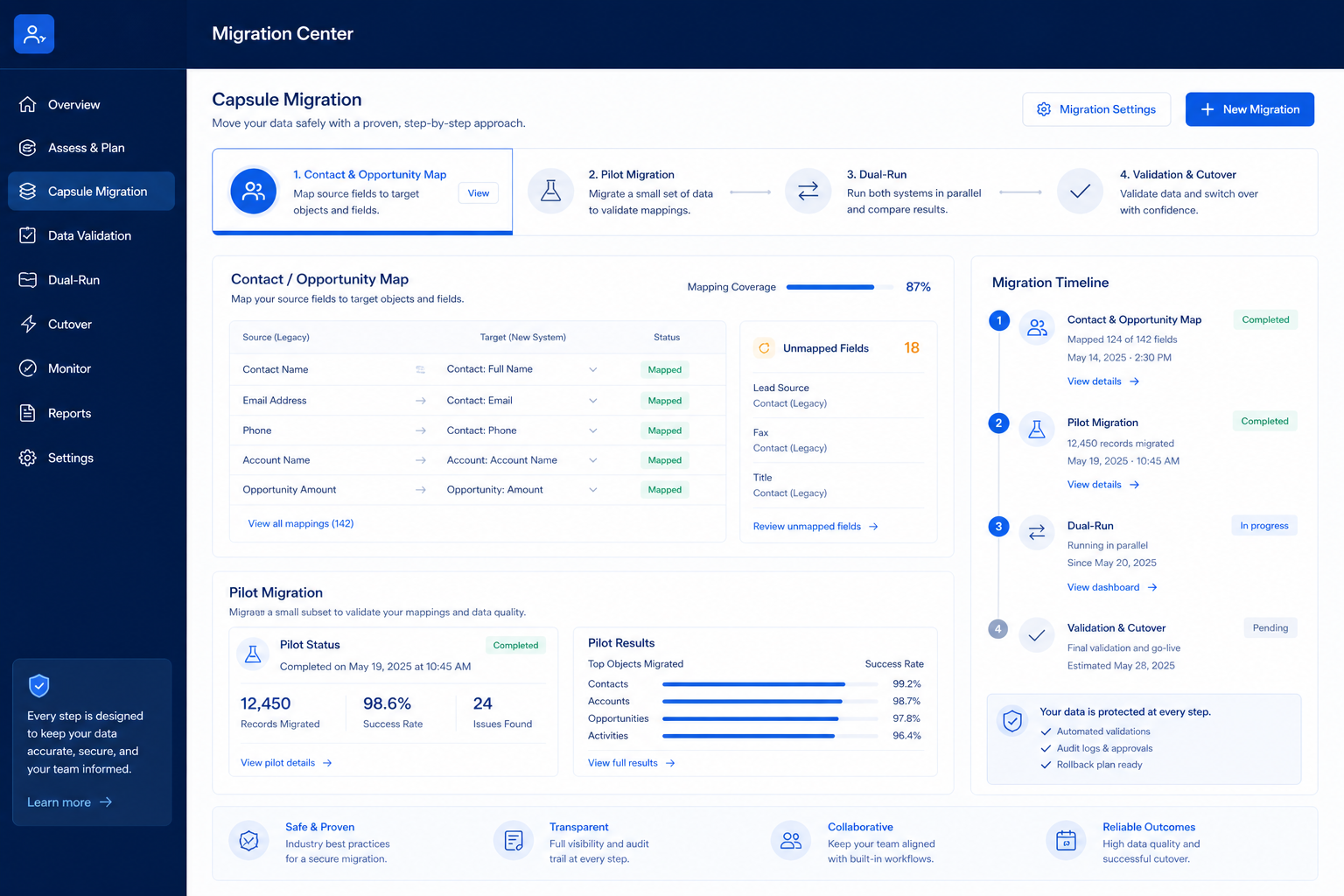
Capsule checklist
Bring these questions to every demo
Ask vendors to show the workflow live, not just describe it.
- 1Inventory sources and objectsCRM, sheets, mailboxes — must/later/archive.
- 2Sign the field mapMeanings before bulk import.
- 3Pilot 20–50 clean recordsSeller spot-check before scale.
- 4Run a dual-run weekCapsule as system of record; old system read-only.
- 5Validate counts and samplesOpen deals and seller-critical records.
Frequently asked questions
Can we migrate everything into Capsule at once?
You can, but you should not. Decision rule: pilot one owner's book, fix the map, then scale. Bulk-importing an unvalidated map is the most common reason a CRM rollout loses seller trust.
Which objects should we move first?
Companies, then people, then open deals, then recent activities — parents before children. contact management, lead management, pipeline management, and deal management are the Capsule anchors in our research; old closed history can stay in an archive export.
How do we map custom fields into Capsule?
Custom fields is researched across every Capsule plan we snapshot. Recreate a field only when someone can name the decision or report that depends on it; everything else goes to the archive CSV.
How long should the dual-run last?
One week is usually right: long enough to catch mapping defects, short enough that people actually switch. Freeze the old system for edits during that week or you will migrate twice.
Who should own the migration?
The Capsule admin owner runs the mechanics; a sales champion owns stage meaning; each seller validates their own book. Not an intern alone with a CSV.
What do we validate before cutting over to Capsule?
Deal counts by owner, every open deal has an owner and stage, contacts resolve to companies, no duplicates in the top accounts, activity dates are real rather than import dates, and required fields are populated. Then seller sign-off.
What about getting data back out later?
Ask before you sign: which objects export, in what format, whether notes and attachments come along, and what happens to data after cancellation. Keep your pre-migration exports either way.
What should I do next?
Run the Capsule setup guide in parallel with the pilot so the target workspace is ready, then follow the implementation guide's 30/60/90 gates after cutover.
1. Capsule migration cutover playbook
Field inventory
Export legacy fields that power contact management, lead management, pipeline management and mark must-map vs archive.
Rehearsal load
Run a non-prod load into Capsule; measure match rates before the freeze.
Production freeze
Freeze legacy writes; cut over; validate Gmail; then reopen.
Migrations fail from optimistic timelines — not from missing motivation.
Migrate to Capsule?
Capsule migration mistakes
No freeze window
Dual-writing without a freeze creates irrevocable duplicates.
Integrations last
Wire Gmail in rehearsal — not on Monday morning after cutover.
Data risk 1
Contact, pipeline, and custom-field limits scale strictly by plan tier.
Data risk 2
Workflow automations and advanced reporting start at Growth; enrichment at Advanced.
Data risk 3
Not a marketing automation or sales-engagement suite — email templates ≠ full campaign platform.
Capsule migration checklist
0/3 dimensions noted — saved in this browser only.
Mapping
Rehearsal
Cutover
Was this article helpful?
Have more questions? Contact our support team.
Part of CRM hub · Capsule review
Related guides
Supporting reading in this topic — not a generic related-posts dump.
- Capsule Implementation: 30/60/90 Rollout That SticksPlan a practical Capsule rollout — owners, stages, adoption checkpoints, and what to defer so the CRM becomes the system of record.
- Capsule Setup: Day-Zero Path to a Working PipelineSet up Capsule for day-zero selling — pipeline, users, email sync, and the first logged activity — before optional marketplace apps.
- CRM Data Migration: Inventory, Pilot & CutoverMigrate CRM data with inventory, cleaning, field mapping, pilot import, validation, freeze-window cutover, and hygiene — without big-bang surprises.
- CRM Requirements Guide: Must-Haves, Nice-to-Haves & StakeholdersWrite demo-ready CRM requirements from 90-day outcomes, must vs nice features, stakeholders, and hard constraints — without feature-wishlist shopping.
Related products
Related comparisons
Related resources
SoftwareGlimpse Updates
Want clearer software shortlists? Get buying guides and comparisons by email.
Newsletter coming soon.