Set up Nutshell in this order: pick a plan that covers day-one needs, name one admin, configure one pipeline, invite daily users, connect email, then have a non-admin create a deal, log activity, and move a stage. Confirm forecasting (Pro+) and AI assistance (Growth+) are on the plan you will actually buy. You’re done when that walkthrough works — not when every module is switched on.
Start on Foundation
Name one admin
One pipeline only
Connect email
Invite daily users
Prove a seller can run it
Nutshell day-zero setup media
Verified captures and vendor tutorials for configuring Nutshell before go-live — pipeline, contacts, and first workflows.
Official Nutshell setup walkthrough
Vendor tutorial for onboarding and configuration. It is not a SoftwareGlimpse rollout plan — use this guide for judgment.
This video is hosted on YouTube
This content is hosted by YouTube. The player loads only after you allow marketing cookies.
Official vendor tutorial
Nutshell Chat: How to set up and manage your live chat and AI chatbot
What this shows
✓Nutshell chat setup
✓live chat and AI chatbot configuration as presented by Nutshell
Product screenshots
Verified captures from Nutshell's product interface.
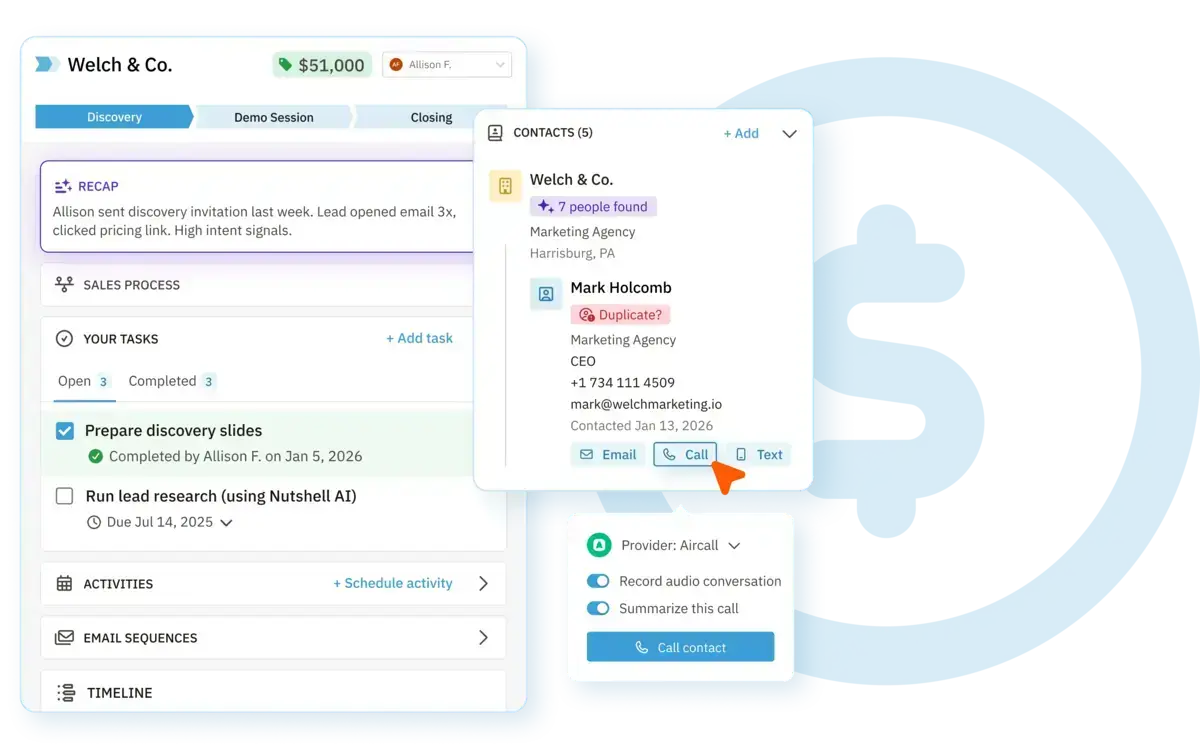
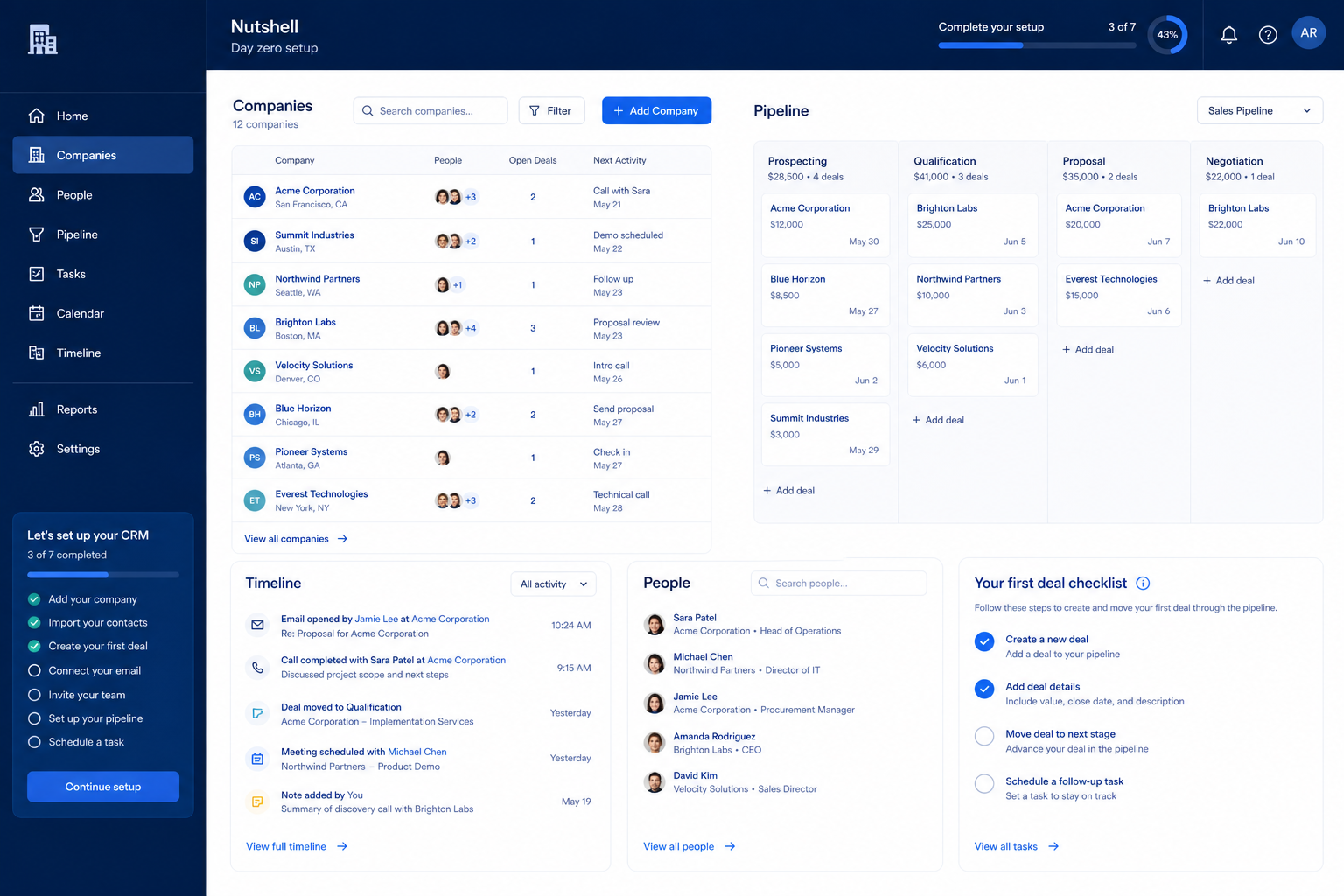
Nutshell CRM hero workspace from official Nutshell CRM page.
Official vendor marketing/UI asset saved locally with source attribution
What Nutshell actually is — Small-business CRM with pipelines, marketing add-ons, and AI assistance on a clear per-user ladder.
Configure these first — Research lists contact management, lead management, pipeline management, and deal management as supported — that is your day-zero surface. Editorial key features: Sales pipelines, Email tools, Marketing add-ons, and AI assistance.
Check the gates before you promise — Plan-gated in research: forecasting (Pro, Business, Enterprise); AI assistance (Growth, Pro, Business, Enterprise).
Start on the right plan — Researched plans: Foundation, Growth, Pro, Business, Enterprise.
Connect only what the loop needs — Research names Gmail and Outlook on the Nutshell side — confirm the ones your daily loop actually depends on.
AI comes after habits — Research lists AI assistant and AI email drafting for Nutshell. Research places AI assistance on Growth, Pro, Business, and Enterprise. Leave it off until the manual loop is boring and reliable.
5Connect email and calendarPlus one daily tool — document the rest as gaps.
6Prove the non-admin loopCreate · log · move — then write the setup note.
1. Start on the Nutshell plan your must-haves need
Plan choice decides what you can configure in Nutshell at all.
Entry plan
Our snapshot lists no free Nutshell plan — Foundation is the floor. Verify on the pricing page.
Qualifying paid plan
Foundation upward — stay on the cheapest one that clears every must-have gate.
Quote-only tier
No quote-only tier appears in our Nutshell snapshot; treat any sales-only promise as unconfirmed.
Write five day-one jobs, map each to a researched Nutshell plan, and pick the cheapest tier that covers all five.
List the five things sellers must do on day one.
Match each one to a researched Nutshell plan. Plan-gated in research: forecasting (Pro, Business, Enterprise); AI assistance (Growth, Pro, Business, Enterprise).
Pick the cheapest plan that covers all five.
Check capacity, not just features. Confirm seat/record caps for Nutshell before inviting everyone.
Our pricing snapshot records a 14-day trial on Growth — confirm current terms on the Nutshell pricing page before you build a schedule around it.
Worked example: a 12-person B2B advisory team needs contact management, lead management, pipeline management, and deal management plus email sync on day one in Nutshell. They start on Foundation and note which capabilities would force an upgrade.
2. Create the workspace and name one admin owner
Name one Nutshell admin owner before you invite the rest of the team.
Admin owner
Fields, users, integrations, and data hygiene in Nutshell.
Sales champion
Owns stage definitions and what “next step” means.
Executive sponsor
Clears blockers; does not redesign the data model midweek.
Name one admin — not a committee — before you invite sellers.
Create the workspace with real company name, currency, and timezone.
Name one admin with ~2 hours a week for fields, users, and hygiene.
Agree: new fields and pipelines go through that admin only.
In Nutshell, open workspace or account settings — confirm the current control labels in the product, docs, or trial.
Worked example: a 12-person B2B advisory team makes ops the Nutshell admin, writes the two-hour commitment into the week, and blocks everyone else from adding fields for 30 days.
3. Model your data and exactly one pipeline in Nutshell
One Nutshell pipeline and four required fields beat a crowded data model.
One motion first
A second pipeline in Nutshell can wait until the first one is honest.
Required fields
Owner, next step, next-step date, expected close — that is it.
Archive, do not recreate
Legacy fields you will not use belong in an export, not the new workspace.
Research confirms contact management, lead management, pipeline management, and deal management for Nutshell — that is the surface you are configuring here.
Decide what a company, a person, and a deal mean in your business, then mirror that in Nutshell. Contact management is researched across every Nutshell plan we snapshot.
Build one pipeline for your main motion. Pipeline management is researched across every Nutshell plan we snapshot.
Use five to seven stages named after buyer-verifiable events, not internal feelings.
Add only the required fields Friday's review needs: owner, next step, next-step date, expected close.
In Nutshell, open the objects, pipeline, or deal configuration area — confirm the current control labels in the product, docs, or trial.
Worked example: a 12-person B2B advisory team configures six stages in Nutshell (qualified, scoped, proposal, verbal, won, lost), makes “next step” required, and refuses every other custom field until after go-live.
4. Invite daily users and set least-privilege roles
Invite Nutshell daily users with least privilege — keep admin scarce.
Daily users in
Anyone who owns a deal or logs activity.
Viewers wait
Read-only curiosity is not worth a paid seat in week one.
Admin rights scarce
One or two admins maximum; everyone else requests changes.
Invite people who touch deals daily. Spectators can wait.
Invite daily users only — viewers often burn paid seats.
Sellers get standard access; admin stays with the owner from step 2.
Count seats against research capacity. Confirm Nutshell seat caps before you invite.
In Nutshell, open the members, users, or permissions area — confirm the current control labels in the product, docs, or trial.
Log in as a non-admin and prove you can create a deal.
Worked example: a 12-person B2B advisory team invites eight sellers, two managers, and ops into Nutshell; part-time analysts wait until someone proves they need a seat.
5. Connect email, calendar, and the first integrations
Connect email, calendar, and one daily tool in Nutshell — defer the rest.
Connect now
Email, calendar, and Gmail.
Connect later
Finance, document, and reporting tools after adoption holds.
Document the gap
Anything Nutshell research does not confirm goes on the risk list, not the launch deck.
Connect email and calendar for the people who own deals. Email sync is researched across every Nutshell plan we snapshot.
Research names Gmail and Outlook on the Nutshell side — confirm the ones your daily loop actually depends on.
Connect nothing else. Every extra connector is another thing to debug during onboarding week.
Write down what is not connected. A documented gap is fine; a pretended integration is not.
In Nutshell, open the integrations or connected-apps area — confirm the current control labels in the product, docs, or trial.
Worked example: a 12-person B2B advisory team connects mailboxes and Gmail in Nutshell, then postpones accounting and document tools until the 30-day adoption review.
6. Prove the non-admin loop, then write the setup note
Nutshell setup is done only after a non-admin completes the loop unaided.
Pick a seller who is not an admin. Watch them create a company and contact, create a deal on the pipeline, log a call or email, set a next step, and move a stage in Nutshell.
Fix whatever they had to ask about — that friction is your real training backlog.
Run the same loop on mobile if that matters. Mobile app is researched across every Nutshell plan we snapshot.
Write a one-page setup note: plan, stage definitions, required fields, admin owner, sync status, known gaps.
Hand that note to the Nutshell implementation guide and schedule training on the same pipeline.
Worked example: a 12-person B2B advisory team's founder completes the loop in Nutshell without ops help, ops writes the one-pager, and only then does the team announce go-live.
Nutshell setup mistakes
Installing integrations before the pipeline works
Connector logos are not a sales process. Get contact management, lead management, pipeline management, and deal management right in Nutshell first.
Copying a 20-stage template
Stages nobody can verify from the buyer's side become noise, then get ignored.
Testing only as an admin
Admin accounts hide the permission and visibility problems sellers hit on day one.
Configuring a capability your plan does not include
Plan-gated in research: forecasting (Pro, Business, Enterprise); AI assistance (Growth, Pro, Business, Enterprise). Check the Nutshell plans guide before you design around a gated feature.
Inviting everyone at once
Seats and capacity are researched limits, not suggestions. Confirm caps on the pricing page before a bulk invite.
Designing around a known weak spot
Research flags: No free plan. Plan for it during setup instead of discovering it in month two.
Frequently asked questions
How do I set up Nutshell quickly?
Qualify the plan, create the workspace with one admin owner, model contact management, lead management, pipeline management, and deal management with a single pipeline, invite daily users, connect email and calendar, then prove the loop as a non-admin. Decision rule: no non-admin loop proof means setup is not finished.
Which Nutshell plan should I set up on?
Researched plans are Foundation, Growth, Pro, Business, Enterprise. Pick the cheapest one that carries every day-one must-have — Plan-gated in research: forecasting (Pro, Business, Enterprise); AI assistance (Growth, Pro, Business, Enterprise). See the Nutshell plans guide for the full selection algorithm.
Does Nutshell email sync work on every plan?
Email sync is researched across every Nutshell plan we snapshot. Confirm current packaging on the pricing page before go-live.
How long should setup take?
A focused small team can finish this six-step path in days, not quarters — the delay is usually agreeing stage definitions, not clicking. Our pricing snapshot records a 14-day trial on Growth — confirm current terms on the Nutshell pricing page before you build a schedule around it.
Should we import all our data during setup?
No. Start with a small clean working set so you can prove the loop, then run the Nutshell migration guide's pilot before bulk import.
Which integrations should we connect first in Nutshell?
Research names Gmail and Outlook on the Nutshell side — confirm the ones your daily loop actually depends on. Connect email and calendar, plus the one tool sellers already open daily. Everything else waits for the 30-day review.
Should we turn on AI features while setting up Nutshell?
Research lists AI assistant and AI email drafting for Nutshell. Research places AI assistance on Growth, Pro, Business, and Enterprise. Leave assistance off until the manual loop is reliable — otherwise you cannot tell whether the AI or the process caused a result.
What should I do next?
Continue with the Nutshell implementation guide for the 30/60/90 adoption gates, or the migration guide if you are moving history from another system.