
This video is hosted on YouTube
This content is hosted by YouTube. The player loads only after you allow marketing cookies.
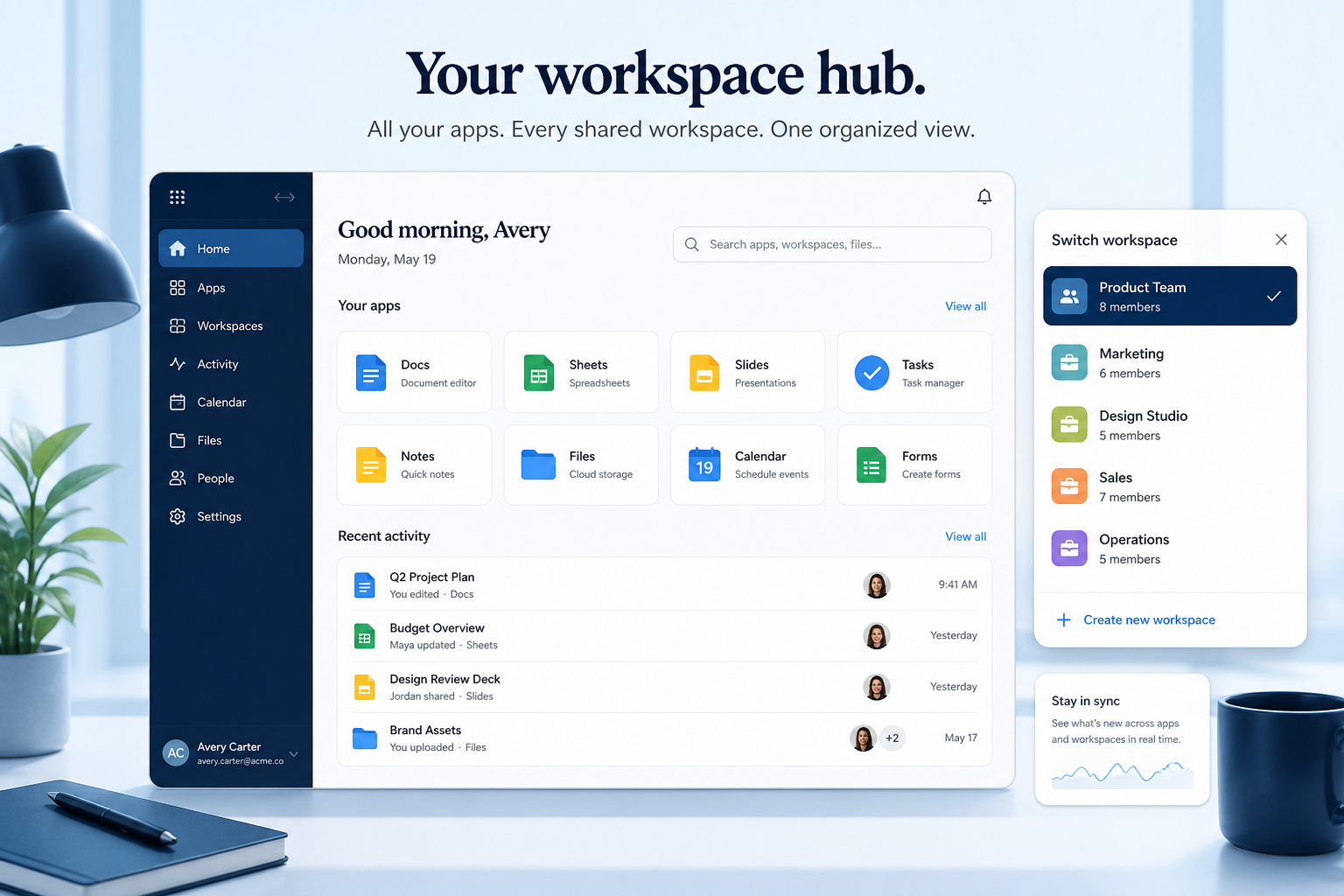
Organise the web apps you live in as desktop workspaces — without confusing that for project tracking.
At a glance
Organise the web apps you live in as desktop workspaces
Ops, project managers, agencies, and delivery teams
Ownership · Status accuracy · Views on the right plan · Integrations
1 products to explore
Fit snapshot
Desktop productivity workspaces wrap and organise apps into focus contexts. They sit beside a work OS; they do not replace boards and timelines.
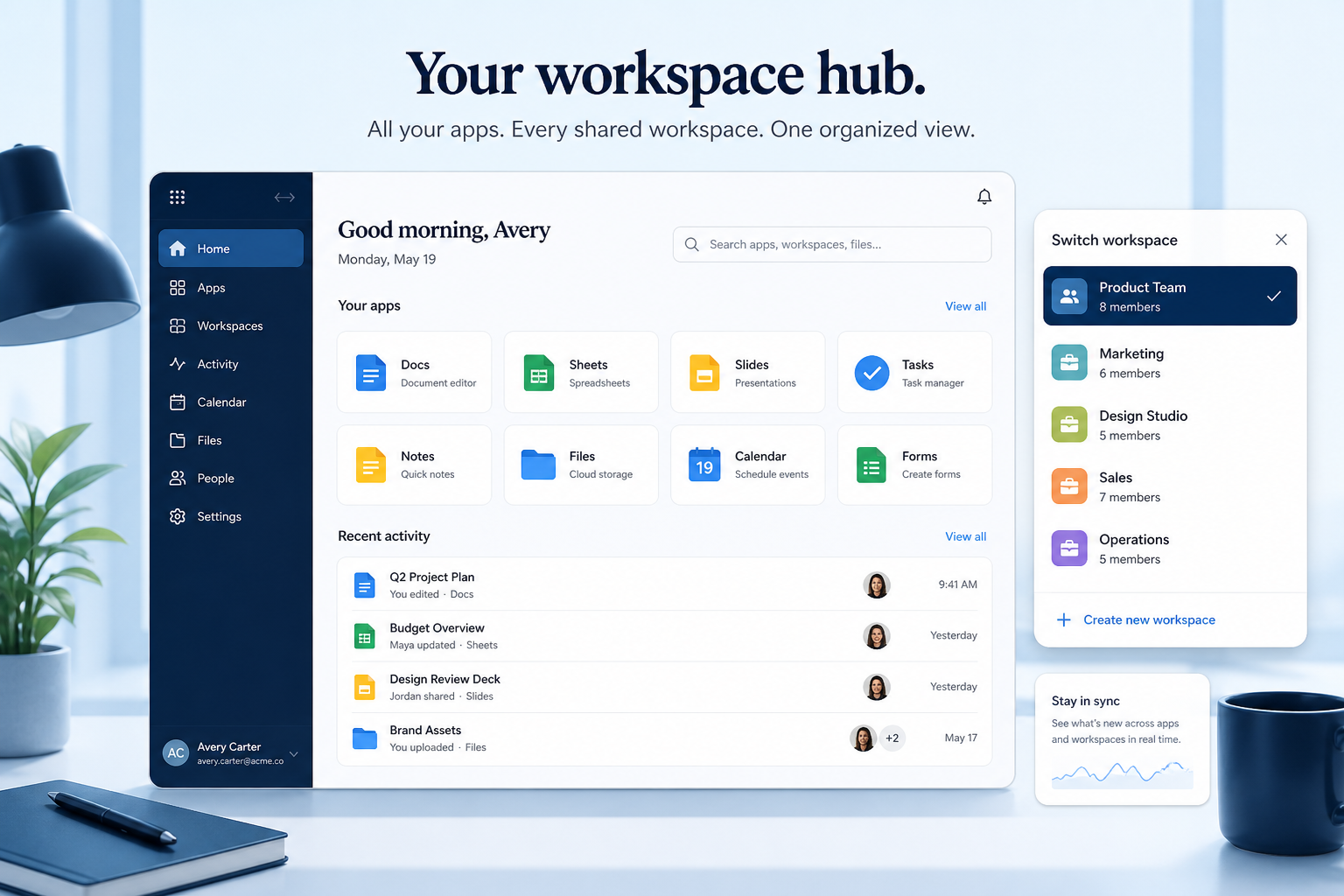
Knowledge workers juggling many SaaS tools who need cleaner desktop contexts per client or project.
How teams put project management software to work for desktop workspace
Example 1
an account lead opens a client workspace with the apps for that account only.
Example 2
a contractor separates personal and client app sets on one machine.
These are the operating problems that usually push teams toward project management software for desktop workspace — not feature wish lists.
Without work-management discipline: Managers reconstruct progress every week.
Without work-management discipline: Tasks stall because nobody is accountable.
Without work-management discipline: Status updates are missed between teams.
Without work-management discipline: Reporting is a last-minute slide rebuild.
Fit depends on operating the project management software with clear owners and hygiene. Here is what “good” looks like for desktop workspace.
With the right project management setup: Shared boards and owners keep status in one place.
With the right project management setup: Required owners and due dates make gaps visible.
With the right project management setup: Automations and notifications move work without chasing.
With the right project management setup: Dashboards and timelines reuse live work data.
Owned work
Every active item has a person and a next date.
Visible status
Reviews start from the board, not from Slack.
Fewer status chasers
Automations and dashboards reduce manual pinging.
Cleaner handoffs
Context stays on the work item.
Buy for workspace organisation; keep delivery tracking in a work OS.
Every active item has a named owner.
Must-have views unlock on the quoted plan.
Native connectors for tools people open daily.
Start with must-haves your team will use weekly. Treat nice-to-haves as later upgrades — not day-one blockers.
Must-have
Nice-to-have
Understand what needs to happen before comparing how products implement each step. Support overlays use structured research — never video inference.
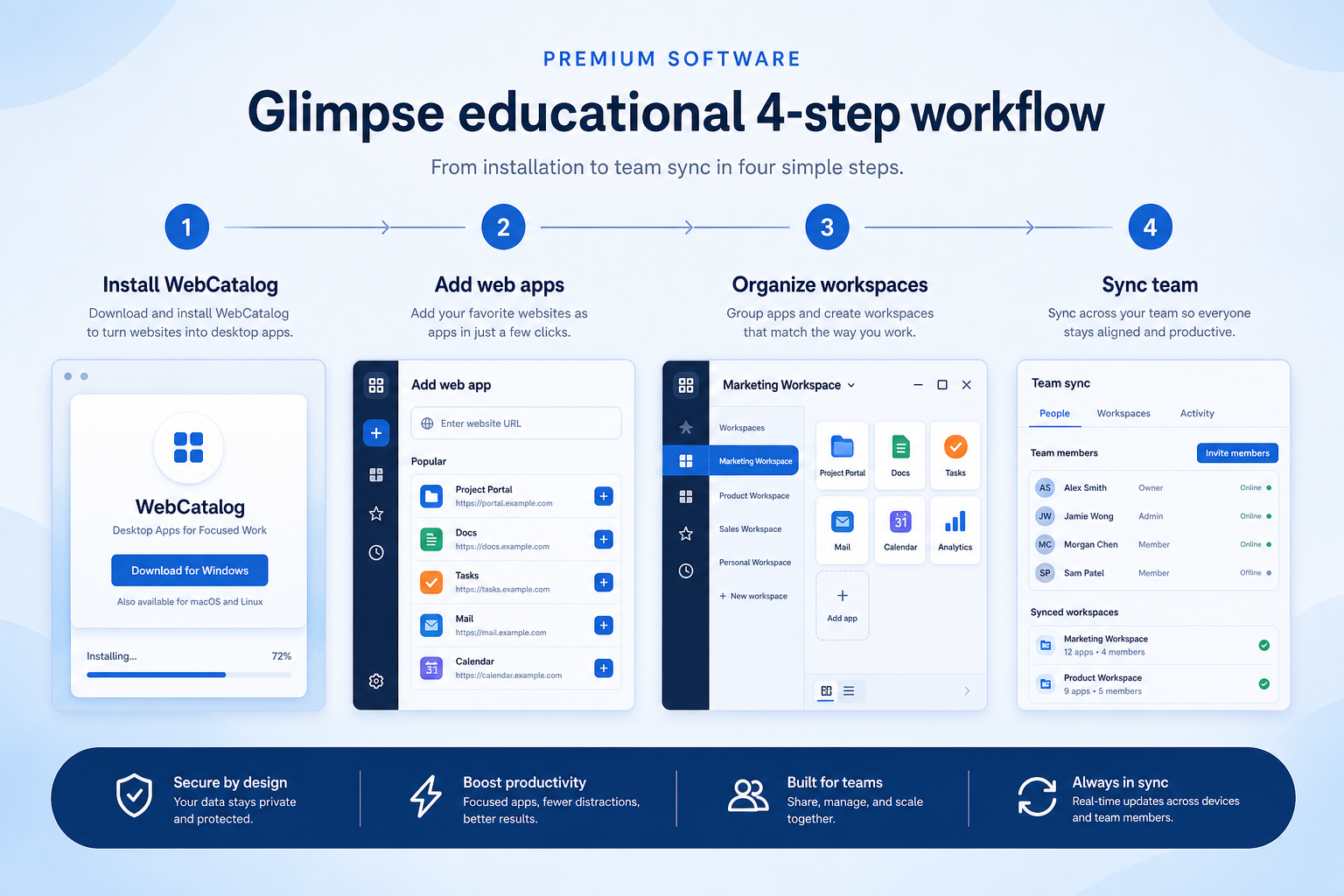
Support labels come from structured feature research — not from videos.
Next step
Next step
Next step
Official product demonstrations can help show how different project management platforms handle the desktop workspace workflow. Absence of a video does not mean a product lacks support for this use case.

HubSpot
The Official HubSpot Sales Hub Tutorial
Lead management workflow — capture through assignment and follow-up
This video is hosted on YouTube
This content is hosted by YouTube. The player loads only after you allow marketing cookies.
What this demonstrates
Workflow coverage
Coverage describes what the demo shows — not product support status.
What to notice
This demonstration does not establish
Related capabilities
Features visible in this demo
Source: HubSpot · Verified 14 Aug 2026
Compare two products against the same workflow using researched assessments. Official demos help you see the workflow — they do not change support status.
HubSpot
This video is hosted on YouTube
This content is hosted by YouTube. The player loads only after you allow marketing cookies.
What to notice
Not shown in this demo

Pipedrive
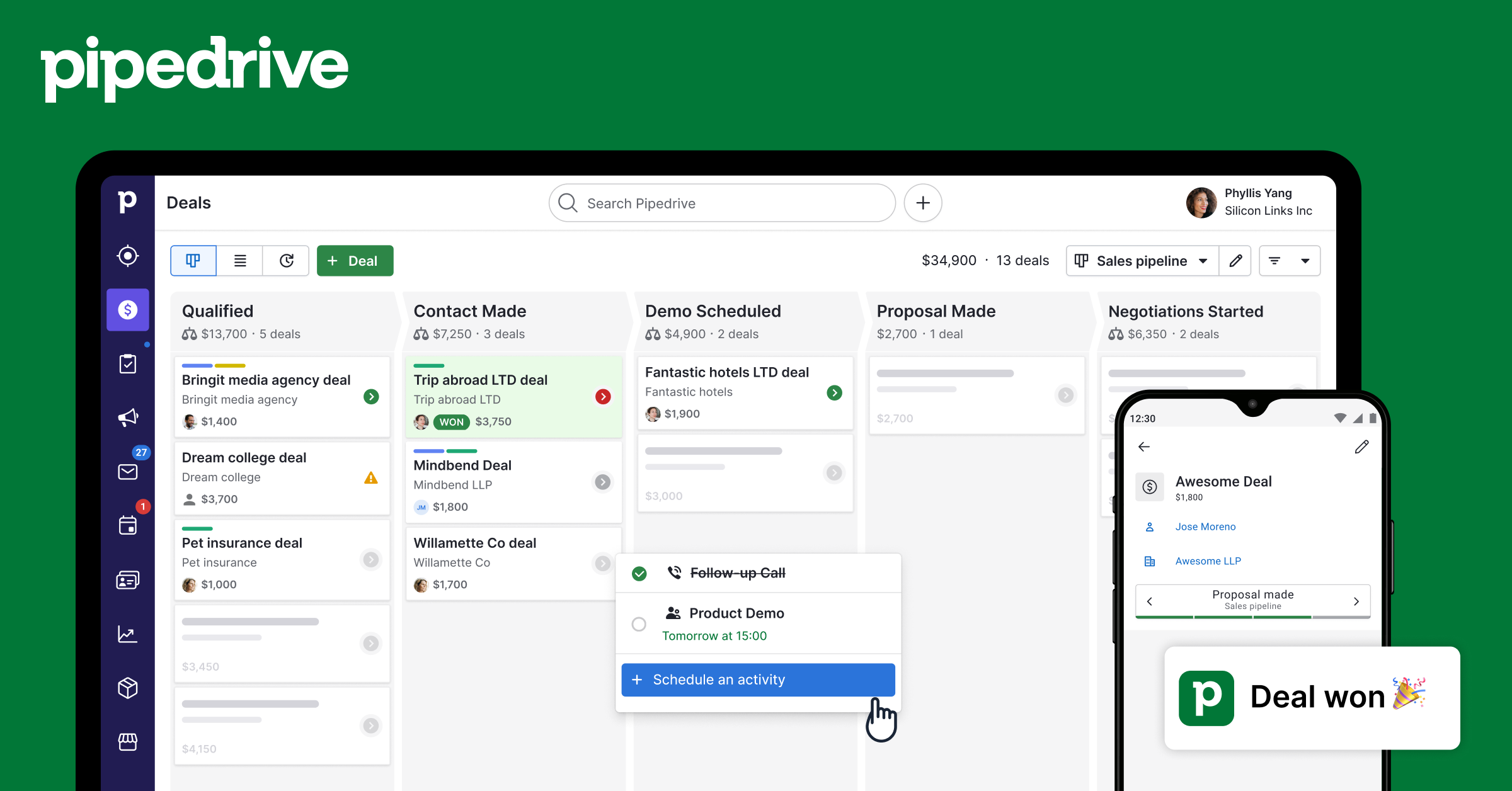
Pipedrive’s sales CRM product view as shown on the official site.
What to notice
Not shown in this demo
Canonical feature assessments for this workflow — not inferred from demos.
| Step | HubSpot | Pipedrive |
|---|---|---|
| Capture work | Unknown | Unknown |
| Plan the view | Unknown | Unknown |
| Automate handoffs | Unknown | Unknown |
| Review weekly | Unknown | Unknown |
Based on the desktop workspace workflow, buyers commonly evaluate the checklist below. Nothing is written to your decision profile until you confirm in the tool.
Context: useCase=desktop-productivity — tools apply this only after your confirmation.
Best when
Client delivery needs shared owners and status.
Best when
Cross-functional work stalls without a system of record.
Best when
Timeline slides, PDFs, remote access, or desktop shells are the blocker.
Catalogue products that list desktop productivity workspace as a supported use case. Inclusion here is not a ranking. Official demo counts never change ranking.

Project Management
Desktop workspace organizer for web apps — Basic Free (2 apps); Pro $5/user/mo annual.
In the current project-management catalogue wave, explore: webcatalog. Related products appear when those soft entries are seeded and tagged.
No. Fit depends on job cluster, seats, and plan gates. Use the Best project management software page for methodology-based awards inside clusters.
Edit, convert, sign, or redact PDFs without turning document friction into delay.
Keep comments, files, and decisions on the work item instead of private chat.
Use Finder for a fit-based shortlist, compare products, or build a requirements checklist before demos.
How we review
Evaluation, verification, and refresh — no fake testing claims.
Editorial methodology
Category criteria and scores grounded in evidence.
Editorial policy
Authorship, evidence levels, scoring, and disclosures.
Corrections
Spot something outdated? Tell us.
Want clearer software shortlists? Get buying guides and comparisons by email.
Newsletter coming soon.