Adobe Marketo Engage Plans: Seats, Channels, and Qualifying Tiers
Adobe Marketo Engage cost guide: researched plan structure, who each tier suits, cost scenarios, and value tradeoffs — no invented prices.
Quick answer
Adobe Marketo Engage pricing is plan-gated across 4 researched tiers. No free plan confirmed in SoftwareGlimpse research. No free/trial flag confirmed in SG data — budget a paid pilot. Compare seat/capacity gates and unlocks — not list-price folklore.
- Free plan: not confirmed in SG data
- No free/trial flag confirmed in SG data — budget a paid pilot
- Entry paid tier researched: Growth
Adobe Marketo Engage plans takeaways
- Packaging is often usage-shaped — Researched plans: Growth, Select, Prime, Ultimate. Confirm credit and seat limits in writing.
- Must-haves set the tier — Our research does not flag plan-gated capabilities for Adobe Marketo Engage, but confirm your must-haves — including contact tiers and send limits — against the packaging you actually intend to buy.
- No invented totals — Never invent list prices here — confirm seats, contacts/channels, and quote terms on /pricing/marketo/.
- Seat discipline still matters — Count who prospects or dials weekly — not the whole org chart — before you compare Adobe Marketo Engage packages.
Adobe Marketo Engage plan anatomy
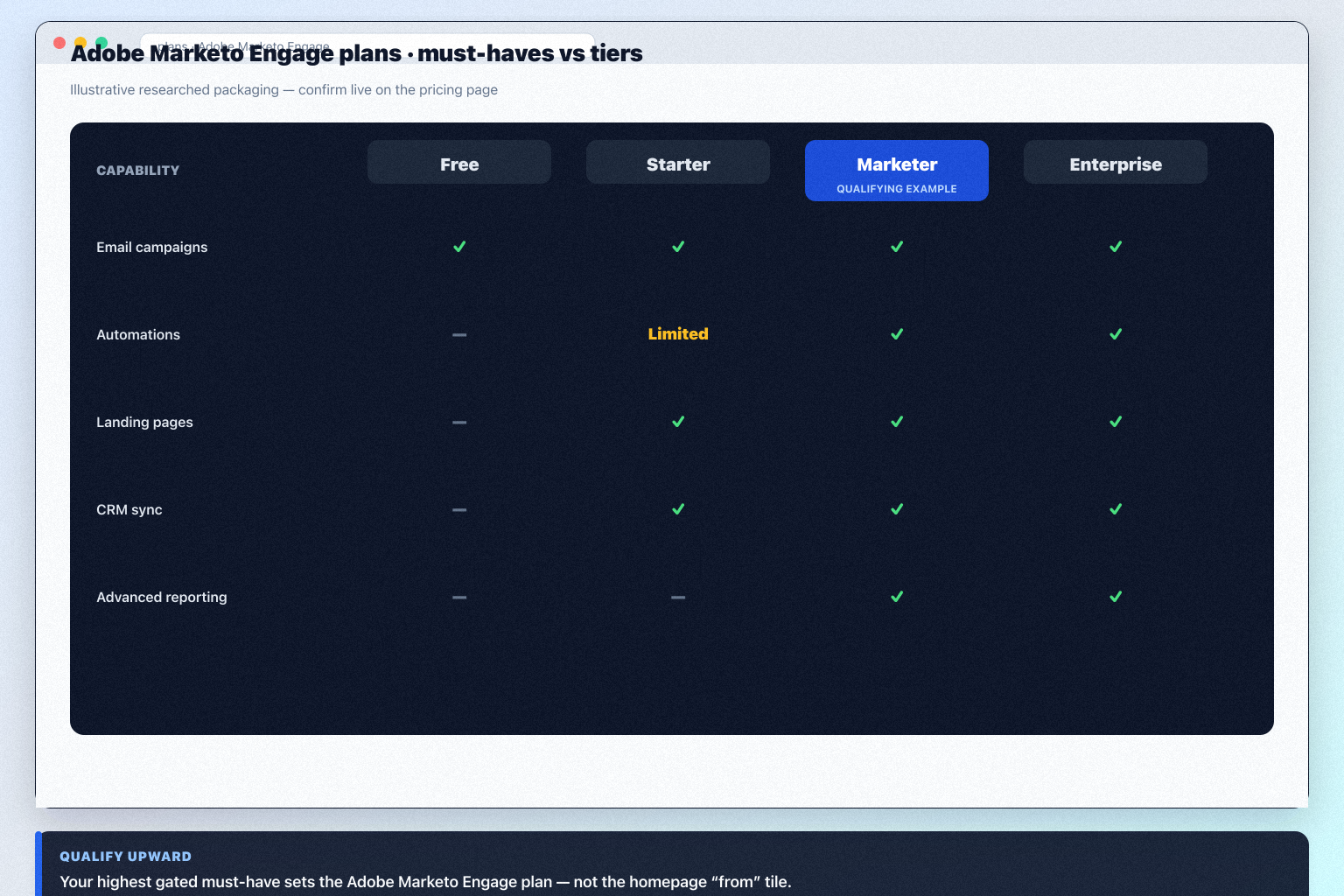
Adobe Marketo Engage must vs nice
- Campaigns + marketing ↔ CRM sync
- Campaigns or automations
- Extra optional add-ons
- AI assistance
Adobe Marketo Engage checklist
Bring these questions to every demo
Ask vendors to show the workflow live, not just describe it.
- 1List day-one must-havesData, outreach, sync that must ship without unused enterprise.
- 2Map contacts and send limitsUse researched plan names — not marketing tiles.
- 3Confirm on pricing pageList price and contact-tier upgrades live there — not in this guide.
Frequently asked questions
Why don’t you list dollar prices here?
Never invent list prices here — confirm seats, contacts/channels, and quote terms on /pricing/marketo/.
What if there is no public plan matrix?
Common for marketing. Compare with a written must-have sheet and quote diligence — not blog “starting at” figures.
Seats or contacts/channels — which matters more?
Whichever your day-one jobs consume. Many teams under-buy contacts/channels and over-buy spectator seats — reverse that.
Adobe Marketo Engage plan matrix and who each tier suits
Structure and trial/free flags come from SoftwareGlimpse pricing research. Dollar amounts appear only when verified — never invent list prices.
- Seats61%
- Add-ons18%
- Implementation12%
- Training5%
- Other4%
Growth
Contact sales · Unlocks: social scheduling, content calendar, social listening · Suits: teams that need custom procurement
Select
Contact sales · Suits: teams that need custom procurement
Prime
Contact sales · Suits: teams that need custom procurement
Ultimate
Contact sales · Suits: teams that need custom procurement
1. Adobe Marketo Engage cost scenarios to pressure-test
Lean team / free-or-trial first
Scope a time-boxed pilot; No free/trial flag confirmed in SG data — budget a paid pilot.
Growing team with gated workflows
Map must-have workflows (social scheduling, funnel builder, landing pages) to plan unlocks before expanding seats.
Hidden / extra cost watch
Budget risk: Custom quote only — no public list-price transparency. Also check add-ons, overages, and admin time outside the sticker plan.
Price Adobe Marketo Engage against how you actually buy seats and unlocks — not against a competitor's homepage headline.
Adobe Marketo Engage value rule
Adobe Marketo Engage cost mistakes to avoid
Cost trap 1
Custom quote only — no public list-price transparency
Cost trap 2
Implementation/ops overhead is enterprise-grade
Cost trap 3
Overkill for SMB creator funnel or social-only jobs
Cost trap 4
Best value requires dedicated marketing ops
Cost trap 5
Not a lightweight social scheduler
Cheaper or clearer alternatives to pressure-test
Compare total cost of ownership vs Adobe Marketo Engage on identical constraints.
- View CRM profile
 Salesforce Account Engagement
Salesforce Account Engagement (Pardot) B2B marketing automation — Salesforce-native nurture and lead management via custom quote; CRM-primary with marketing secondary for landscape context.
- View CRM profile
 HubSpot
AI-powered customer platform with free forever CRM, plus paid Smart CRM seats and Sales/Marketing/Service hubs for growing teams.
- View CRM profile
 Braze
BrazeEnterprise B2C customer engagement platform for multi-channel messaging — custom / contact-sales pricing.
- View CRM profile
 ActiveCampaign
Email marketing automation ESP with multi-step journeys; CRM pipelines strongest on Plus+; contact-based pricing.
Catalogue peers only — not commission-ranked.
Adobe Marketo Engage pricing checklist
0/3 dimensions noted — saved in this browser only.
Plan gates you must unlock
Trial / free proof
TCO extras
Was this article helpful?
Have more questions? Contact our support team.
Part of Adobe Marketo Engage review · Marketing & Growth hub
Related guides
Supporting reading in this topic — not a generic related-posts dump.
- How to Choose Marketing SoftwareA practical framework for shortlisting social schedulers, funnel builders, MAP platforms, listening tools, and webinars by job.
- Is Adobe Marketo Engage Worth It? Fit Scenarios Before You BuyDecide if Adobe Marketo Engage is worth it for your growth team — fit scenarios, packaging, and when to keep looking — without invented ROI percentages.
- Marketing Software Pricing GuideBudget schedulers, funnel builders, MAP platforms, listening tools, and webinars by qualifying configuration — not the advertised starter tile.
Related products
Related comparisons
SoftwareGlimpse Updates
Want clearer software shortlists? Get buying guides and comparisons by email.
Newsletter coming soon.