SoftwareGlimpse
Ecommerce Software

WooCommerce Setup: Day-Zero Path to a Working Ecommerce Loop

Set up WooCommerce for day-zero work — seats, one core loop, required integrations, and non-admin proof — before optional hubs.

By Lee M.Updated Aug 18, 20266 min readFact-checked

Quick answer

Set up WooCommerce in this order: qualify the plan you will actually buy, name one store owner, configure hosting, SSL, one payment gateway, and the extensions you will actually buy, connect the payments and shipping you depend on, then have a non-admin run a non-developer can add a product and a buyer can check out on the live domain. Confirm pos omnichannel (WooCommerce core+) and marketplace channels (WooCommerce core+) are on the package you will actually buy. You’re done when that walkthrough works — not when every optional app is switched on.

  • Start on WooCommerce core
  • Name one store / ops owner
  • hosting, SSL, one payment gateway, and the extensions you will actually buy
  • Connect required payments / shipping / channels
  • Prove a non-admin can run the loop

WooCommerce day-zero setup media

Verified captures and vendor tutorials for configuring WooCommerce before go-live — pipeline, contacts, and first workflows.

Official WooCommerce setup walkthrough

Vendor tutorial for onboarding and configuration. It is not a SoftwareGlimpse rollout plan — use this guide for judgment.

This video is hosted on YouTube

This content is hosted by YouTube. The player loads only after you allow marketing cookies.

Official vendor tutorial

How to set up WooCommerce: quick tour of the admin dashboard

How WooCommerce presents the product in an official vendor video.

What this shows

  • WooCommerce product surfaces as shown in the official vendor video
  • UI/workflow layout marketed by the vendor
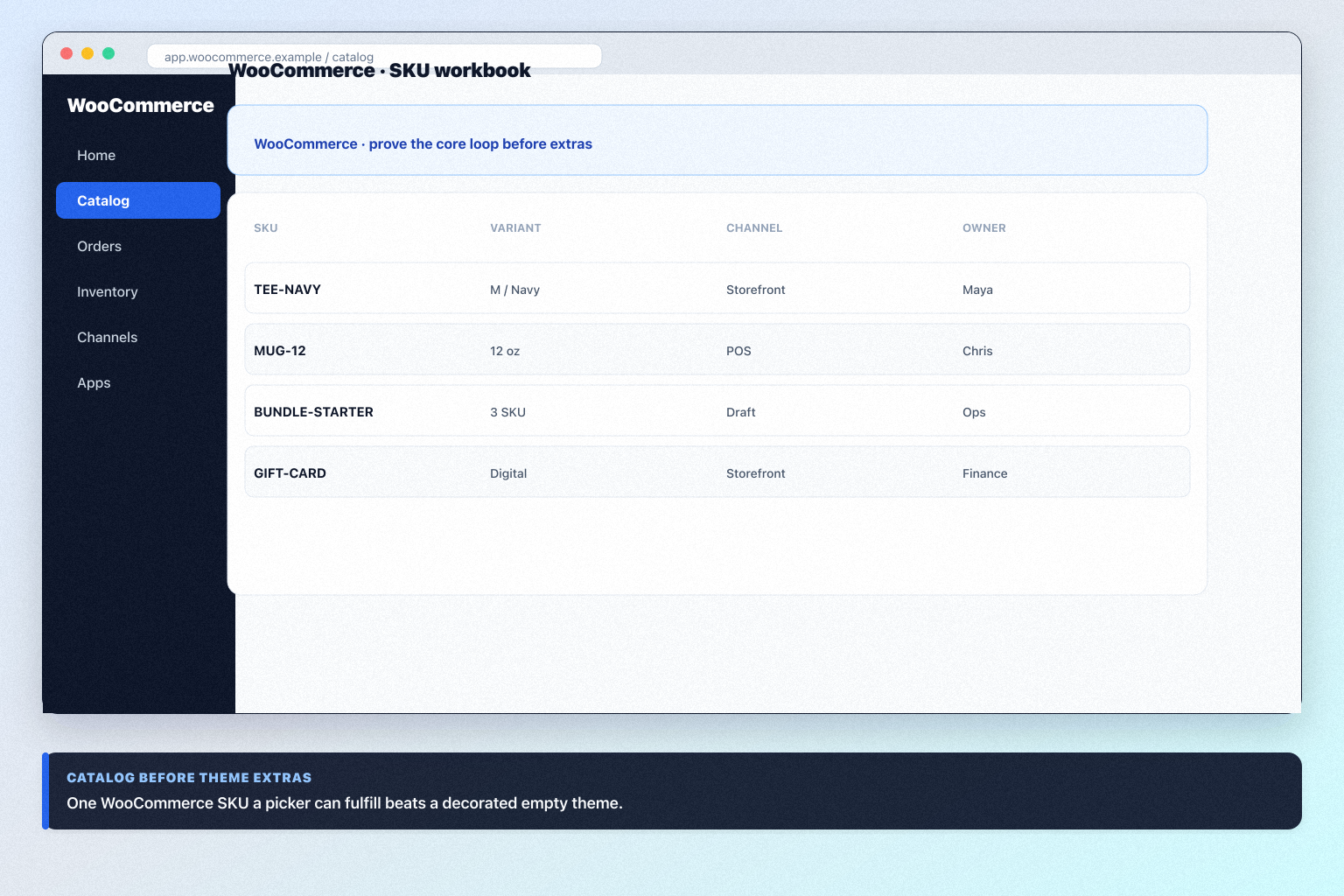
Full product screenshots and evidence live on the WooCommerce research page.

What matters in your WooCommerce setup

  • What WooCommerce actually is WooCommerce is an open-source ecommerce plugin for WordPress — free to install with costs coming from hosting, themes, extensions, and payment processing (WooPayments or gateways). Suited to merchants who want CMS + store control on their own infrastructure. N…
  • Configure these first Research lists online storefront, product catalog, checkout payments, and order management as supported — that is your day-zero surface.
  • Do not treat it as every ecommerce job WooCommerce is open-source WordPress cart. It is not a substitute for a fully hosted SaaS admin with no server ownership.
  • Prove with a real workflow Worked example: Harbor Studio (already on WordPress) is done when they can a non-developer can add a product and a buyer can check out on the live domain — not after a vendor tour.

WooCommerce day-zero path

WooCommerce setup walkthrough for open-source WordPress cart.
A working WooCommerce core loop beats a decorated empty workspace.

WooCommerce must vs nice

Must-have
  • Core job loop
  • Plan / hub gates
  • Integrations
Nice-to-have
  • AI extras

1. Qualify plan and packaging

Researched plans: WooCommerce core, Extensions & hosting. Never invent list prices here — confirm plans, processing, and quote terms on /pricing/woocommerce/. Worked example: Harbor Studio (already on WordPress) lists everyone who must log in weekly before they invite “the whole company.”

2. Configure one core loop

Configure hosting, SSL, one payment gateway, and the extensions you will actually buy. Research-supported surfaces include online storefront, product catalog, checkout payments, and order management. Worked example: Harbor Studio (already on WordPress) refuses optional modules until a non-developer can add a product and a buyer can check out on the live domain.

3. Non-admin proof

Our snapshot records no trial length for WooCommerce, so WooCommerce core is your proving ground. Success: a non-developer can add a product and a buyer can check out on the live domain. Worked example: Harbor Studio (already on WordPress) records a 10-minute loom of the walkthrough for stakeholders who skip hands-on time.

WooCommerce checklist

Bring these questions to every demo

Ask vendors to show the workflow live, not just describe it.

  • 1Name a store / ops ownerCatalog, users, and hygiene need a responsible party.
  • 2Configure one core loophosting, SSL, one payment gateway, and the extensions you will actually buy
  • 3Complete non-admin proofa non-developer can add a product and a buyer can check out on the live domain

4. Connect the integrations WooCommerce must have on day one

  • Native connector

    Prefer OAuth paths IT can audit.

  • API / webhook

    Name an owner when the sync breaks.

  • Manual export

    Accept only for low-volume, low-risk data.

Research lists WordPress, Stripe, PayPal, and Zapier for WooCommerce. Confirm which are native vs API before go-live.

  1. Pick one identity or SSO path if required.
  2. Connect one operational integration the weekly users touch daily.
  3. Document anything left as manual export.

Worked example: WordPress-native brands and content-heavy stores connects the one integration that prevents double entry before inviting the full team.

5. Train weekly users — not a one-time all-hands

Train the people who must open WooCommerce every week. Cover: login, the core loop (online storefront, product catalog, and checkout payments), and where to log blockers.

Worked example: WordPress-native brands and content-heavy stores runs a 30-minute working session on live data and includes one sceptic who will actually use the tool.

6. Write the setup note stakeholders can audit

Document plan tier, admin owner, integrations live, and the non-admin proof (online storefront, product catalog, and checkout payments). Link to /pricing/woocommerce/ for commercial detail.

Worked example: WordPress-native brands and content-heavy stores stores a one-page note finance and IT can read without joining another demo.

7. Connect the integrations WooCommerce must have on day one

  • Native connector

    Prefer OAuth paths IT can audit.

  • API / webhook

    Name an owner when the sync breaks.

  • Manual export

    Accept only for low-volume, low-risk data.

Research lists WordPress, Stripe, PayPal, and Zapier for WooCommerce. Confirm which are native vs API before go-live.

  1. Pick one identity or SSO path if required.
  2. Connect one operational integration the weekly users touch daily.
  3. Document anything left as manual export.

Worked example: WordPress-native brands and content-heavy stores connects the one integration that prevents double entry before inviting the full team.

8. Train weekly users — not a one-time all-hands

Train the people who must open WooCommerce every week. Cover: login, the core loop (online storefront, product catalog, and checkout payments), and where to log blockers.

Worked example: WordPress-native brands and content-heavy stores runs a 30-minute working session on live data and includes one sceptic who will actually use the tool.

9. Write the setup note stakeholders can audit

Document plan tier, admin owner, integrations live, and the non-admin proof (online storefront, product catalog, and checkout payments). Link to /pricing/woocommerce/ for commercial detail.

Worked example: WordPress-native brands and content-heavy stores stores a one-page note finance and IT can read without joining another demo.

Frequently asked questions

  • When is setup actually done?

    When a non-admin can a non-developer can add a product and a buyer can check out on the live domain on the package you will buy.

  • Should we turn on every WooCommerce hub on day one?

    No. Extra apps hide whether the core open-source WordPress cart loop works.

Was this article helpful?

Have more questions? Contact our support team.

SoftwareGlimpse Updates

Want clearer software shortlists? Get buying guides and comparisons by email.

Newsletter coming soon.