SoftwareGlimpse
Project Management & Productivity Software

Contractor Foreman Setup: Day-Zero Path to a Working Work Loop

Set up Contractor Foreman for day-zero work — seats, one core loop, required integrations, and non-admin proof — before optional views and automations.

By Lee M.Updated Aug 18, 20269 min readFact-checked

Quick answer

Set up Contractor Foreman in this order: qualify seats for people who will actually open it weekly, name one workspace owner, configure one workspace, one real board, and a weekly update ritual, connect Slack/calendar/storage the loop depends on, then have a non-admin prove a non-admin updates an item and a manager sees it on the board or timeline. You are done when that walkthrough works — not when every optional view or automation is switched on.

  • Start on the entry package on the pricing page
  • Name one workspace owner with weekly hours
  • one workspace, one real board, and a weekly update ritual
  • Connect Slack / calendar / files
  • Prove a non-admin can run the loop
  • Write a one-page setup note

Contractor Foreman day-zero setup media

Verified captures and vendor tutorials for configuring Contractor Foreman before go-live — pipeline, contacts, and first workflows.

Official Contractor Foreman setup walkthrough

Vendor tutorial for onboarding and configuration. It is not a SoftwareGlimpse rollout plan — use this guide for judgment.

This video is hosted on YouTube

This content is hosted by YouTube. The player loads only after you allow marketing cookies.

Official vendor tutorial

Creating Project Schedules with Gantt Chart and Critical Path Method with Contractor Foreman

How Contractor Foreman presents the product in an official vendor video.

What this shows

  • Contractor Foreman product surfaces as shown in the official vendor video
  • UI/workflow layout marketed by the vendor
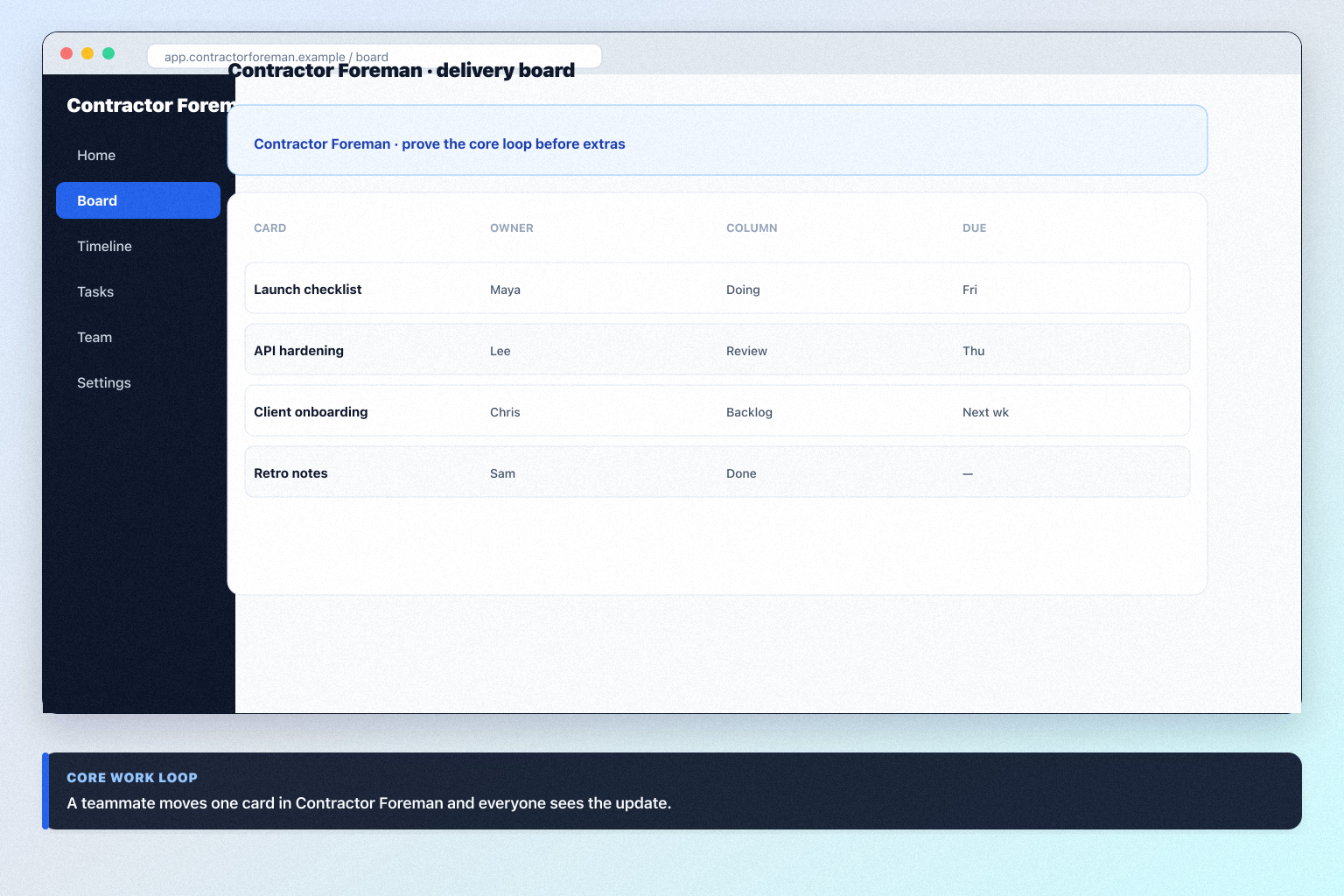
Full product screenshots and evidence live on the Contractor Foreman research page.

What matters in your Contractor Foreman setup

  • What Contractor Foreman actually is Contractor Foreman is construction management software for contractors — estimates, scheduling, daily logs, change orders, and field documentation. Flat monthly pricing (2026-08-19 — confirm on contractorforeman.com/pricing).
  • Configure these first Research lists task boards, timeline / Gantt, workload and resources, and automations and workflows as supported — that is your day-zero surface. Core loop: task boards, timeline / Gantt, workload and resources, and automations and workflows.
  • Do not treat it as every work-management job Contractor Foreman is work OS / collaborative project tracking. It is not a substitute for a PDF editor, remote-desktop tool, or PowerPoint Gantt add-in.
  • Start on the right package Contractor Foreman is often sold on seats, hubs, pools, or quote packaging in our snapshot — treat homepage tiles as marketing, not a bill of materials. Confirm live packaging on the pricing page. Never invent list prices here — confirm seats, hubs, and quote terms on /pricing/contractor-foreman/.
  • Connect only what the loop needs Research names Zapier on the Contractor Foreman side — confirm the connectors your work loop depends on.
  • AI comes after habits Research lists AI assistant, AI summaries, AI automation, and AI recommendations for Contractor Foreman. Research places AI assistance on Standard. Leave it off until the manual loop is boring.

Contractor Foreman day-zero path

  1. 1Qualify seats
  2. 2Workspace admin
  3. 3One real board
  4. 4Weekly people
  5. 5Slack/files
  6. 6Non-admin

Contractor Foreman day-zero path

Contractor Foreman setup walkthrough for work OS / collaborative project tracking.
A working Contractor Foreman core loop beats a decorated empty workspace.

Contractor Foreman must vs nice

Must-have
  • task boards
  • Named owners on live work
  • timeline / Gantt
  • Slack / calendar / files for the loop
Nice-to-have
  • automations and workflows
  • AI assistance

Contractor Foreman day-zero connectors

Connect only what stand up one board, assign owners, and show status in a second view (timeline or dashboard) needs. Extra apps hide whether the core loop works.

  • Zapier
  • Slack
  • Google Calendar / Outlook
  • Google Drive / OneDrive

Verify each workflow in a trial — marketplace logos are not proof of fit.

Contractor Foreman checklist

Bring these questions to every demo

Ask vendors to show the workflow live, not just describe it.

  • 1Qualify Contractor Foreman seats and hubsDay-one must-haves on the cheapest researched package.
  • 2Name one workspace ownerBoards, users, and hygiene need ~2 hours a week.
  • 3Configure one core loopone workspace, one real board, and a weekly update ritual
  • 4Invite weekly users onlyRoles before a company-wide invite.
  • 5Connect Slack / calendar / filesDocument other gaps instead of wiring everything.
  • 6Complete non-admin proofa non-admin updates an item and a manager sees it on the board or timeline

1. Start on the Contractor Foreman package your must-haves need

Contractor Foreman setup diagram 1.
Package choice decides whether Contractor Foreman can even run work OS / collaborative project tracking.
  • Right package

    Must-haves sit on a researched tier you can accept.

  • Demo trap

    The tour used timeline or automations that unlock later — write the qualifying hub before setup continues.

  • Over-invite

    Inviting the whole Slack workspace inflates seats before the loop is proven.

Write five day-one jobs for work OS / collaborative project tracking, map each to researched Contractor Foreman packaging, and pick the cheapest tier that covers all five — including seats and guests. 1. List everyone who must log in weekly (not “the whole company”).

  1. Match each day-one job to researched packaging. Our research does not flag plan-gated capabilities for Contractor Foreman, but confirm your must-haves — including seats, hubs, and add-ons — against the packaging you actually intend to buy.
  2. Pick the cheapest package that covers all five jobs.
  3. Confirm guest/viewer rules so clients or execs are not accidentally billed as full seats. Our snapshot records no trial length for Contractor Foreman — ask for an evaluation window in writing before you commit seats. Never invent list prices here — confirm seats, hubs, and quote terms on /pricing/contractor-foreman/. Worked example: Harbor Ops (cross-functional delivery replacing spreadsheet status) lists the people who will update Contractor Foreman every week before they invite lurkers. They refuse a demo tenant that is running on a higher hub than they will buy.

2. Create the workspace and name one owner

Contractor Foreman setup diagram 2.
Name Responsible + Accountable for Contractor Foreman before anyone builds a second board.
  • Owned

    One person can change permissions without a Slack poll.

  • Committee

    Three “admins” and no hygiene — pause invites.

  • Vendor-owned

    If only the implementation partner can change a board, you do not own the workspace yet.

Name one workspace owner — not a committee — before you invite contributors. 1. Create the workspace with real timezone and company identity.

  1. Give that owner ~2 hours a week for users, board hygiene, and permission changes.
  2. Agree: new boards, automations, and seat upgrades go through that owner for 30 days.
  3. Confirm current control labels in Contractor Foreman admin / users settings — do not invent menu names. Worked example: Harbor Ops (cross-functional delivery replacing spreadsheet status) writes the two-hour Contractor Foreman ownership into the week and blocks everyone else from installing marketplace apps until the core loop has a week of real use.

3. Configure one core loop — not five experiments

Contractor Foreman setup diagram 3.
One trusted Contractor Foreman board beats a folder of experiments nobody updates.
  • Loop live

    Contributors update the same place managers look.

  • Shadow spreadsheet

    If status still lives in Sheets, setup is not finished.

  • View sprawl

    Six unused views hide the one ritual you need.

Configure one workspace, one real board, and a weekly update ritual. Research-supported surfaces include task boards, timeline / Gantt, workload and resources, and automations and workflows. 1. Stand up one live container of work (board, project, space, sheet, or cycle — whatever Contractor Foreman actually uses).

  1. Put real owners and due dates on at least five items.
  2. Open a second view a manager can read without being the builder.
  3. Refuse optional hubs until a non-admin can a non-admin updates an item and a manager sees it on the board or timeline. Worked example: Harbor Ops (cross-functional delivery replacing spreadsheet status) treats a decorated empty workspace as failure. They will not turn on AI or extra automations until stand up one board, assign owners, and show status in a second view (timeline or dashboard).

4. Invite weekly users, connect the loop, prove non-admin work

Contractor Foreman setup diagram 4.
Exit Contractor Foreman setup when a non-admin can finish the work loop unaided.
  • Proof pass

    A non-admin completes the loop; a manager sees it without a screenshot.

  • Permission fail

    Extend the trial and fix roles — do not buy more hubs.

  • Integration fail

    The loop still depends on a side chat or sheet — reconnect or document the gap.

Our snapshot records no trial length for Contractor Foreman — ask for an evaluation window in writing before you commit seats. 1. Invite only people who will update Contractor Foreman this week.

  1. Connect Slack, calendar, or files the loop depends on. Research names Zapier on the Contractor Foreman side — confirm the connectors your work loop depends on.
  2. Success: a non-admin updates an item and a manager sees it on the board or timeline.
  3. Record a 10-minute walkthrough for stakeholders who skip hands-on time.
  4. Write a one-page setup note: package, owner, loop, known gaps. Worked example: Harbor Ops (cross-functional delivery replacing spreadsheet status) is done only when a sceptic contributor finishes the walkthrough without an admin hovering. If that fails, they fix permissions before any go-live speech.

Common Contractor Foreman setup mistakes

  • Configuring the demo hub you will not buy

    If timeline, automations, or guest access only exist on a higher Contractor Foreman package, setup on the demo is fiction. Qualify the hub first.

  • Inviting the whole company on day one

    Empty seats do not create adoption. Invite weekly users, prove the loop, then expand.

  • Treating it as every PM job

    Contractor Foreman is work OS / collaborative project tracking. Stretching it into a PDF editor, remote-desktop tool, or PowerPoint Gantt add-in produces a messy workspace and a second tool anyway.

  • Automations before a weekly ritual

    Automations amplify garbage. Get humans updating the board first.

  • Skipping non-admin proof

    A polished admin tour is not evidence. If a contributor cannot finish the loop, you do not have a working system.

Frequently asked questions

  • When is setup actually done?

    When a non-admin can a non-admin updates an item and a manager sees it on the board or timeline on the package you will buy, and you have a named owner with weekly hours. A decorated workspace is not done.

  • Should we turn on every Contractor Foreman hub on day one?

    No. Extra hubs hide whether the core work OS / collaborative project tracking loop works. Add views and automations after a week of real updates.

  • How long should day-zero take?

    A focused team can finish in one working day if package, owner, and the first board are already decided. Multi-week “setup” usually means undecided packaging or missing ownership.

  • Do we need Slack connected on day one?

    Only if the work loop depends on it. Research names Zapier on the Contractor Foreman side — confirm the connectors your work loop depends on. Document gaps instead of wiring a marketplace zoo.

  • Where do we confirm seats and hubs?

    Never invent list prices here — confirm seats, hubs, and quote terms on /pricing/contractor-foreman/.

  • Is Contractor Foreman the same as monday sales CRM?

    Contractor Foreman is evaluated here as work OS / collaborative project tracking. Do not assume a sibling product (CRM, ITSM, or docs) is the same workspace.

Was this article helpful?

Have more questions? Contact our support team.

SoftwareGlimpse Updates

Want clearer software shortlists? Get buying guides and comparisons by email.

Newsletter coming soon.